

Magento
Open Source 2.4.9 GA (and later 2.4.x).
B2B Suite turns a standard Magento store into a wholesale/trade store. It adds the features B2B buyers expect and B2B sellers need to run a margin-aware sales desk:
Everything works on a standard Luma store and on a headless (Astro) storefront through GraphQL and REST — driven by the same rule engine, so both behave identically.
Install B2B Suite with Composer using your AgenticEcom licence key (find it on your My Licences page — one key unlocks every module you own):
# 1. Register the AgenticEcom repository (once per store)composer config repositories.agenticecom composer https://repo.agenticecom.netcomposer config --global --auth http-basic.repo.agenticecom.net <YOUR-LICENCE-KEY> x
# 2. Require this modulecomposer require agenticecom/module-b2b-suite
# 3. Apply itphp bin/magento setup:upgrade && php bin/magento setup:di:compile && php bin/magento cache:flushMagento
PHP
Storefront
Guests
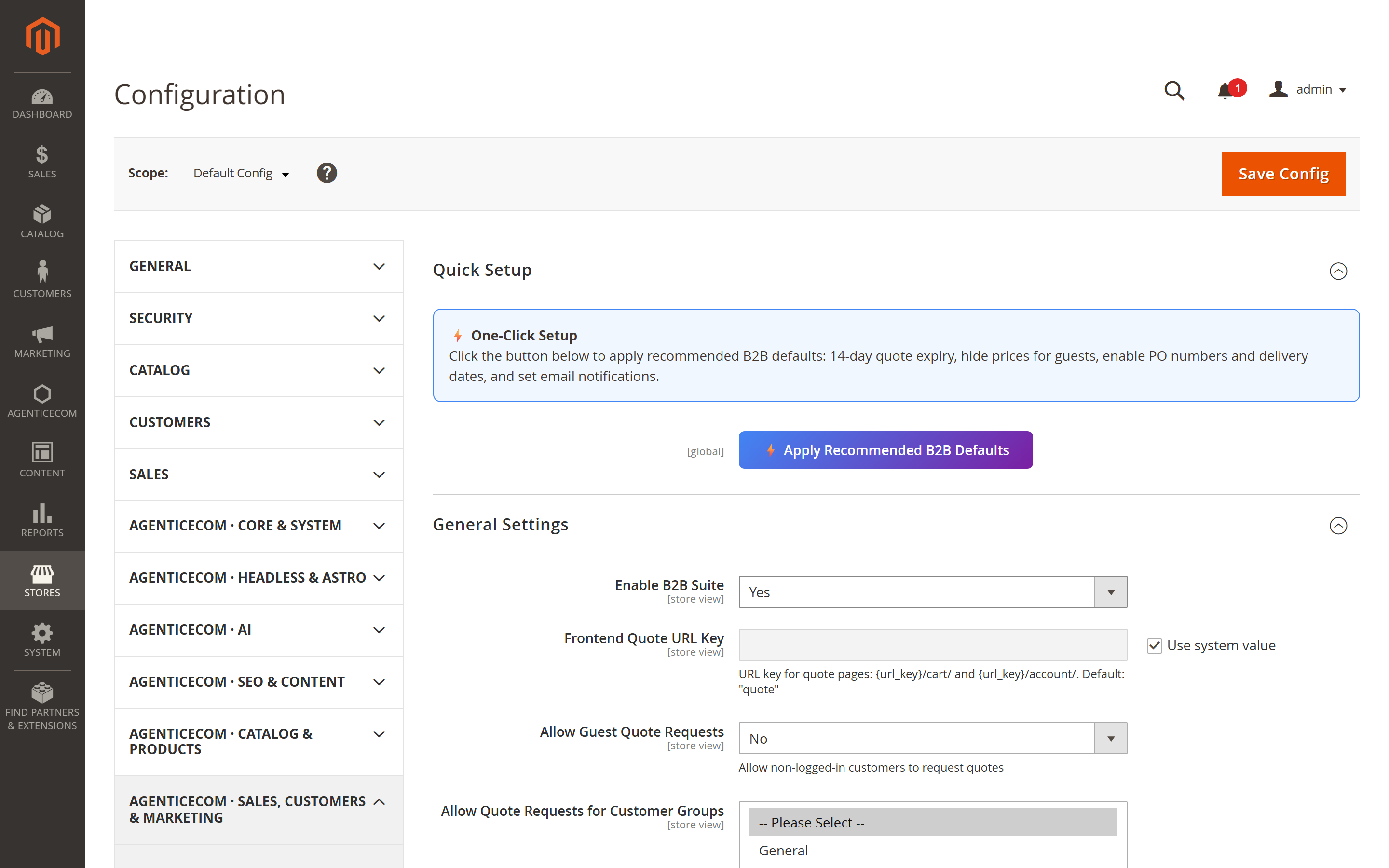
Enable the module: Stores → Configuration → AgenticEcom · Sales, Customers & Marketing → B2B Suite → General Settings → Enable B2B Suite = Yes. (Admin screens live under Sales → B2B Suite: B2B Quotes, Price Requests, Hide Price Rules.)
Open General Settings → Quick Setup and click Apply Recommended B2B Defaults — this sets a 14-day quote expiry, hides prices for guests, enables PO numbers and delivery dates, and turns on email notifications. (You can fine-tune everything afterwards.)
Decide who can quote: set Allow Quote Requests for Customer Groups (e.g. Wholesale), and whether guests may request quotes.
Place “Add to Quote” buttons on the product page and/or category listing.
(Optional) Turn on Hide Price / Call for Price to replace prices with a quote CTA for trade products or groups.
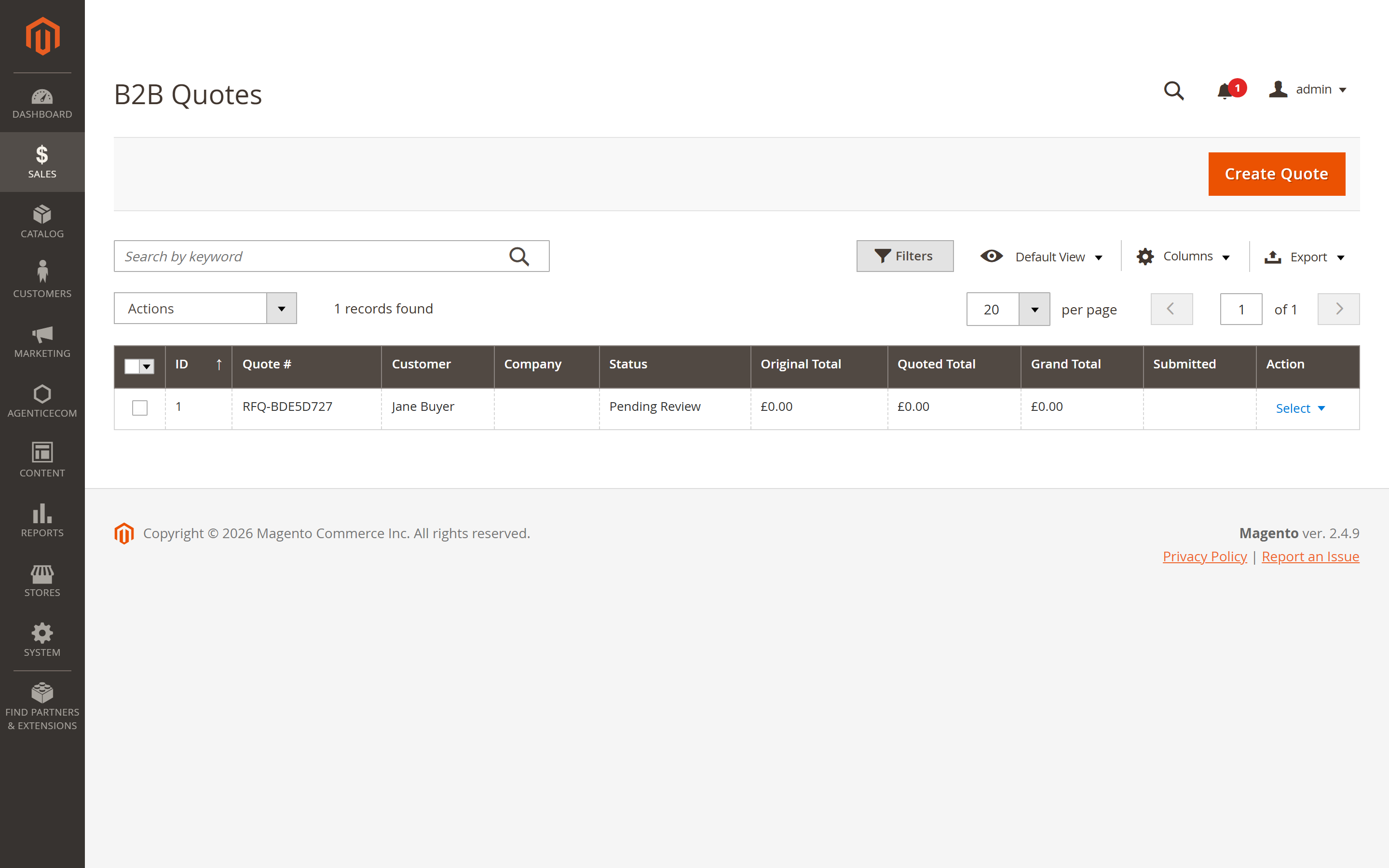
Submit a test quote from the storefront and process it in Sales → B2B Quotes.
Request — a customer adds products via Add to Quote (PDP/PLP) and submits a request with their details (name, email, company, optional PO number and delivery date, and — if enabled — a proposed price per line).
Pending — the quote lands in Sales → B2B Quotes as Draft/Pending. You’re notified by email (if Admin Notifications are on).
Negotiate — open the quote, adjust quantities and unit prices, see the margin against your cost attribute, and add internal notes. Every change is recorded in the quote history.
Approve / Reject — approve the quote (manually, or automatically within the guardrails you set) or reject it with a reason. The customer is emailed.
Accept → Convert — the customer accepts the approved quote; you Convert to Order and it becomes a standard Magento order with the agreed items and prices.
Expire / Remind — approved quotes can expire after N days, with a reminder email sent beforehand.
Open any quote from Sales → B2B Quotes. The detail screen is organised into tabs, with Approve, Reject, Convert to Order and Download PDF actions in the toolbar:
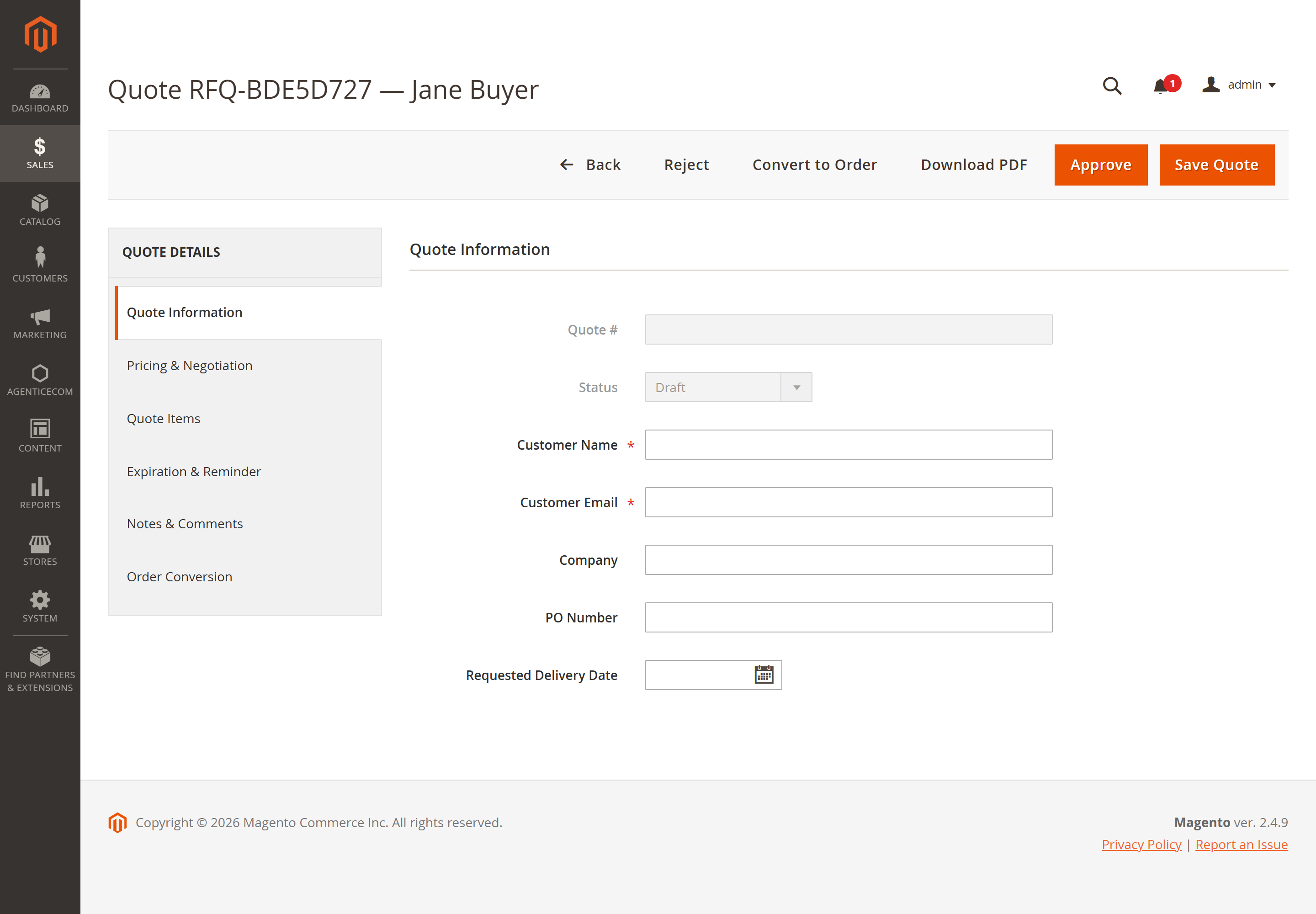
| Tab | What you do here |
|---|---|
| Quote Information | The header: Quote # (RFQ number), status, customer name & email, company, PO number, requested delivery date. |
| Pricing & Negotiation | Adjust unit prices and discounts line by line; margin is shown against your Cost Attribute. |
| Quote Items | The line items — SKU, quantity, price, line note. Edit quantities or remove lines. |
| Expiration & Reminder | Per-quote expiry date and reminder schedule (overrides the global default). |
| Notes & Comments | Internal notes and the customer-facing comment thread; the full change history. |
| Order Conversion | Convert the approved quote into a Magento order and see the resulting order link. |
The grid itself supports filtering, search and mass actions (Approve, Reject, Cancel, Delete). You can also create a quote on a customer’s behalf from the admin — useful when a buyer phones or emails their requirement.
Replace the price (and optionally the Add-to-Cart button) with a call-to-action for selected products, categories or customer groups. There are two ways to target it, and rules win over the global setting.
Sales → B2B Suite → Hide Price Rules. Each rule targets products by conditions (SKU, attribute, category, customer group), carries a priority, and has its own mode and replacement content. The lowest priority number is evaluated first, and the first matching rule wins.
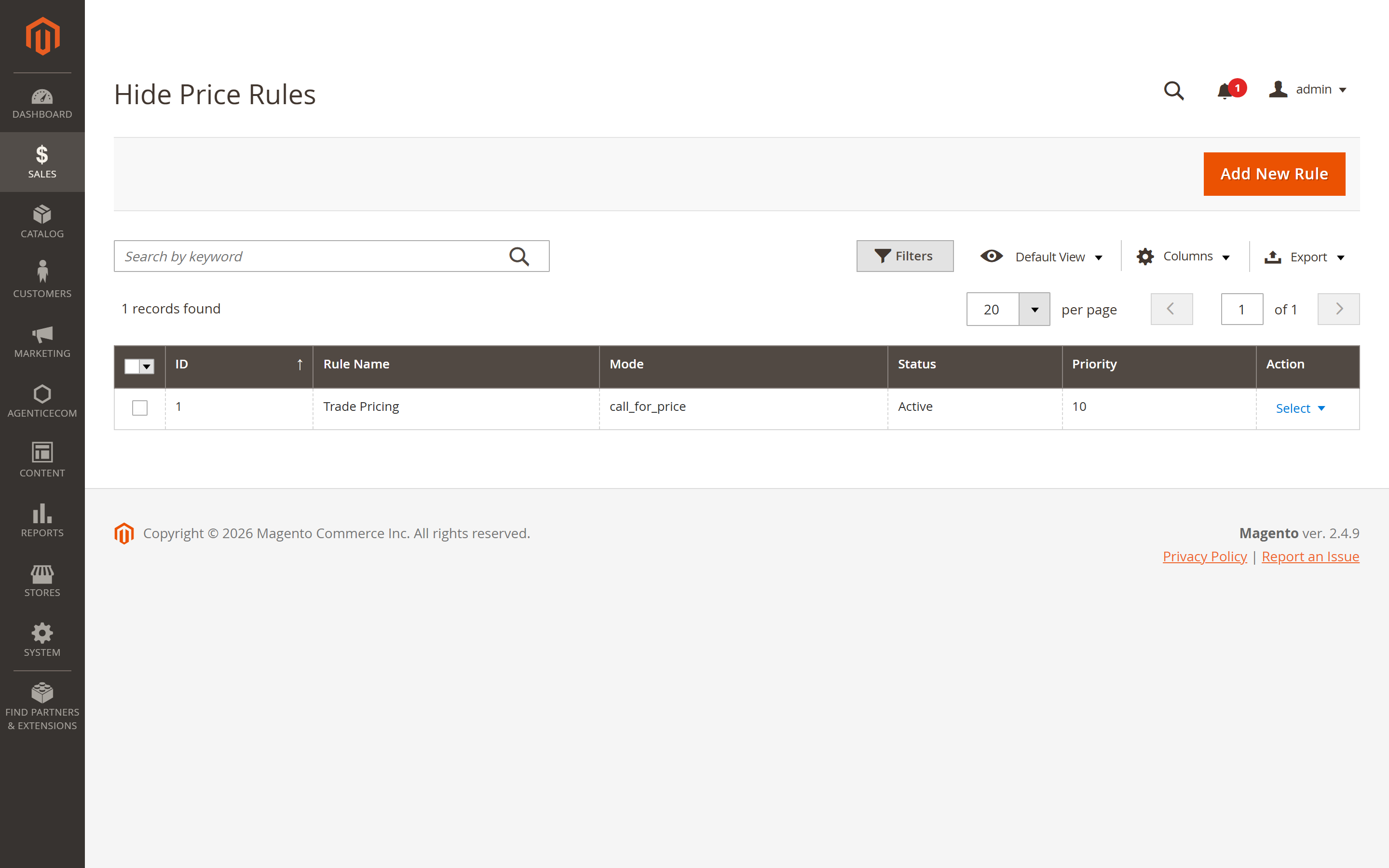
Inside a rule:
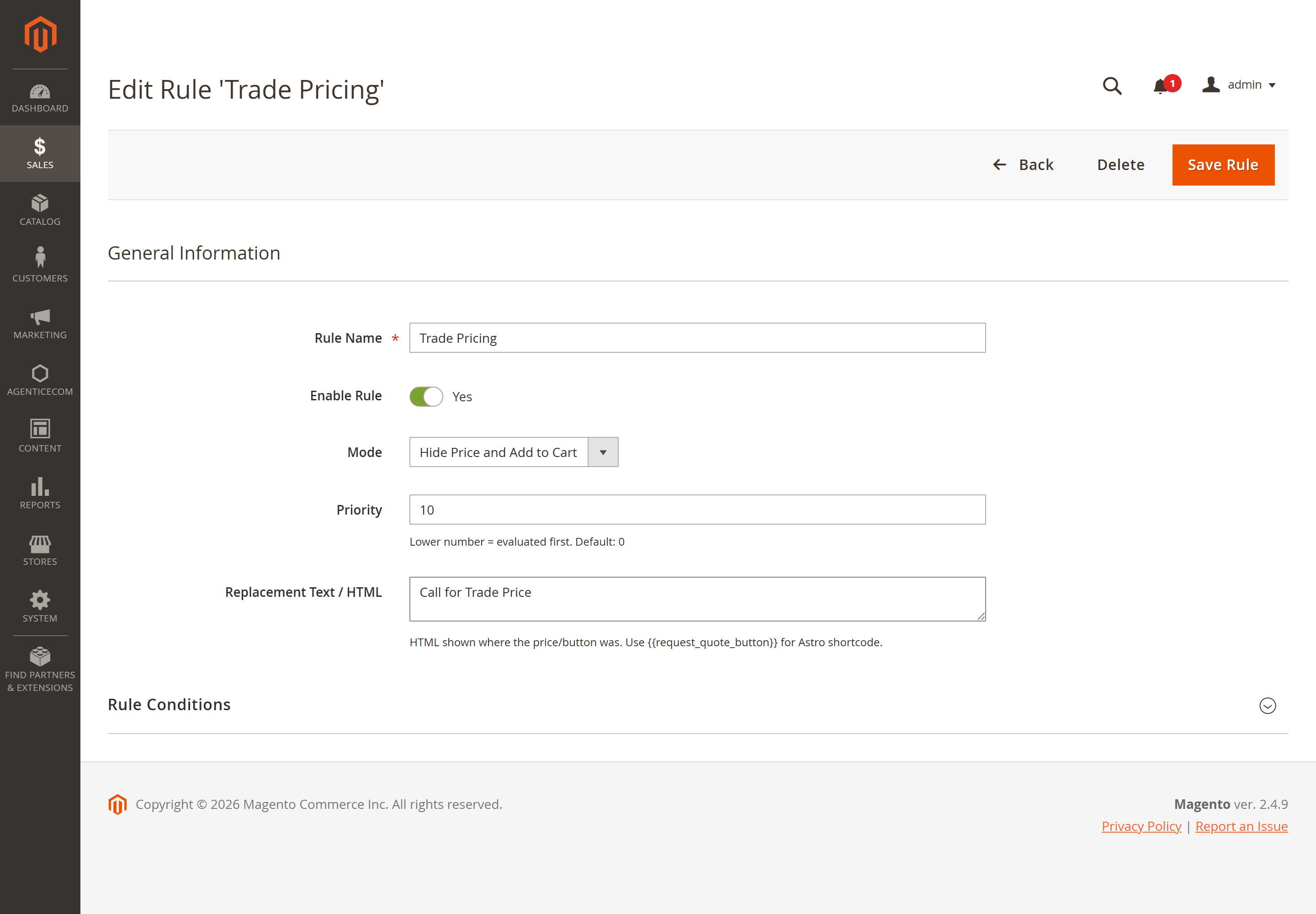
| Field | What it does |
|---|---|
| Rule Name | Internal label (e.g. Trade Pricing). |
| Enable Rule | Toggle the rule on/off without deleting it. |
| Mode | What the storefront shows — see the five modes below. |
| Priority | Lower number = evaluated first. Default 0. The first matching rule wins. |
| Replacement Text / HTML | What appears where the price/button was. Supports HTML; use {{request_quote_button}} to drop in the Astro quote button. |
| Rule Conditions | Standard Magento condition tree — target by SKU, attribute set, category, price, customer group, etc. |
Configuration → B2B Suite → Price & Add-to-Cart Rules sets a single store-wide rule by customer group and/or category. Use this when you just want “hide all prices for guests”.
hide_all — hides both the price and the Add-to-Cart button. The product becomes
“enquiry only”.
hide_price_only — hides the price but keeps Add to Cart (useful when checkout
pricing is negotiated later).
replace_with_quote — swaps Add to Cart for a Request a Quote button that drops the
product into the RFQ flow.
call_for_price — shows your Replacement Text (e.g. “Call for Price”) and optionally
a contact/enquiry CTA.
login_to_see — hides the price from guests and shows a Login to see price link;
logged-in eligible customers see it normally.
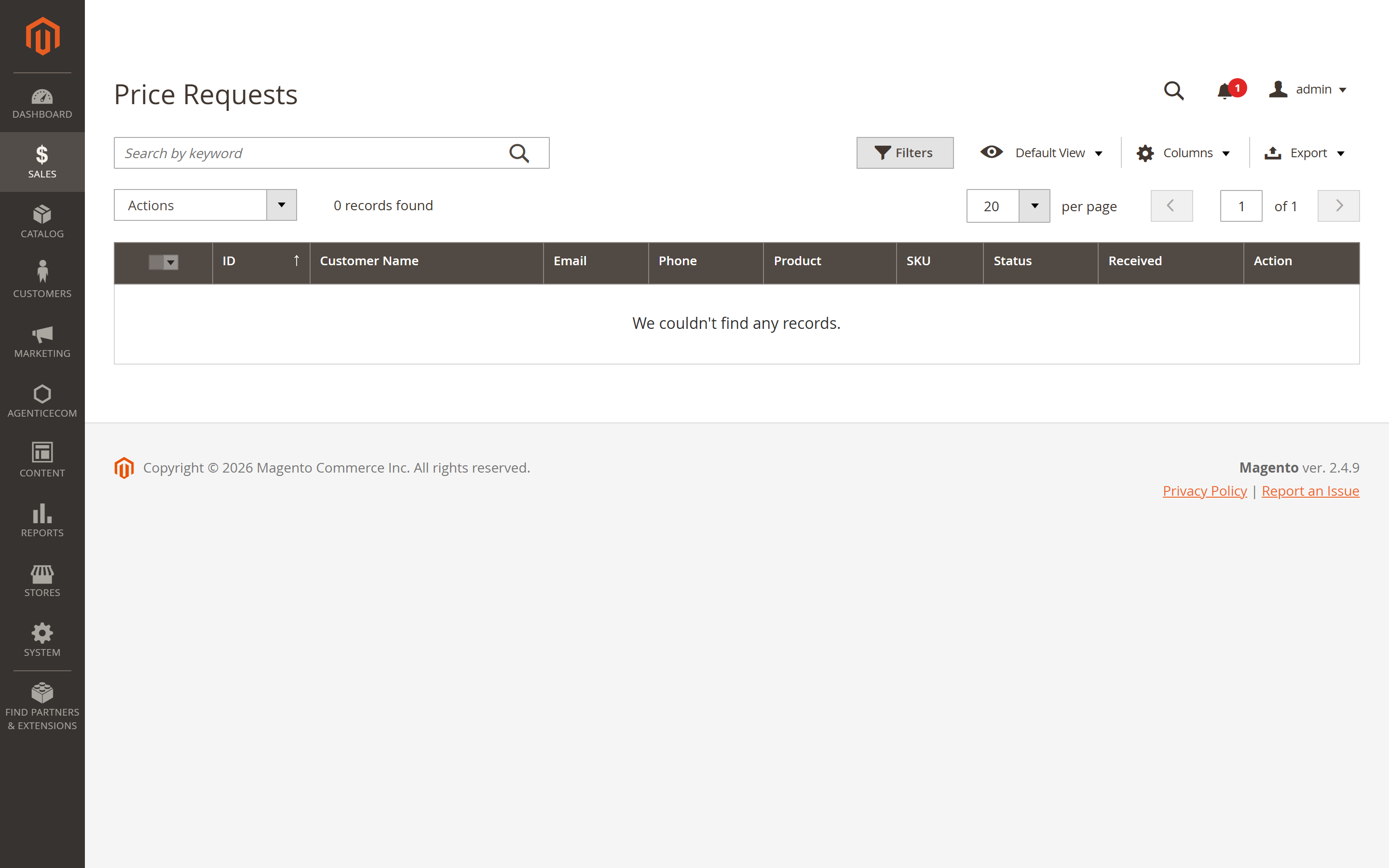
A lightweight “call for price” enquiry inbox. When a shopper uses the hide-price Get a Quote / popup form, the enquiry lands in Sales → B2B Suite → Price Requests and you reply by email straight from the admin.
Stores → Configuration → AgenticEcom · Sales, Customers & Marketing → B2B Suite
| Field | What it does |
|---|---|
| Enable B2B Suite | Master on/off switch for the whole module. |
| Frontend Quote URL Key | URL key for the quote pages ({key}/cart/, {key}/account/). Default quote. Min 3 chars. |
| Allow Guest Quote Requests | Let visitors request a quote without logging in. |
| Auto-Create Customer Account for Guests | When a guest submits a quote, create a customer account for them automatically (depends on guest quotes). |
| Allow Quote Requests for Customer Groups | Which groups can request quotes. Leave empty for all groups. |
| Minimum Quote Amount | Minimum cart total required to request a quote. 0 disables the check. |
| ”Add to Quote” on Product Page | Show/hide/position the Add-to-Quote button on the PDP. |
| ”Add to Quote” on Category Listing | Same control for the category/search listing (PLP). |
| Disable Quotation for Categories | ”Add to Quote” is hidden for products in these categories. |
| Field | What it does |
|---|---|
| Allow Customer to Edit Submitted Quotes | Let customers change a quote after submitting it. |
| Allow Customer to Propose Prices | Customers can suggest their own price per line item when requesting. |
| Quote Expiry (Days) | Days before an approved quote expires. Overridable per quote; empty disables expiry. |
| Send Reminder (Days Before Expiry) | Send a reminder email this many days before a quote expires. |
| Auto-Approve Quotes | Approve quotes automatically when they’re within the guardrails below. |
| Auto-Approve if Discount Less Than (%) | Auto-approve only if total discount is under this percentage (1–100). |
| Auto-Approve if Total Below (Amount) | Auto-approve only if the quote total is under this amount. 0 disables. |
| Cost Attribute (for Margin Display) | Product attribute used to compute profit margin on quotes (e.g. cost). |
| Show Discount % on Approved Quotes | Show the customer their savings percentage on approved quotes. |
| Custom Shipping Method Label | Display name for the quote-specific shipping method (e.g. “Quote Shipping Rate”). |
This is the config group’s exact name in the admin (Stores → Configuration → B2B Suite → Price & Add-to-Cart Rules).
| Field | What it does |
|---|---|
| Enable Price / Add-to-Cart Rules | Turn the global hide-price behaviour on. |
| Mode | One of the five modes above, applied store-wide. |
| Apply to Customer Groups | Groups the global rule applies to. Empty = product-level rules only. |
| Apply to Categories | Hide price for all products in these categories. |
| Exclude Product IDs | Comma-separated product IDs that always show their price. |
| Replacement Text | Text shown instead of the price (e.g. “Call for Price”). |
| Replacement Image | Optional image shown instead of the price. |
| Hide “Add to Cart” Button | Hide it, or replace it with a custom button. |
| Replace Button Text / Link URL | Label and target for the replacement button (URL, or popup for the AJAX quote form). |
| Show “Login to See Price” Link | Show a login prompt to guests in place of the price. |
| Hide “Add to Wishlist” / “Add to Compare” | Also hide wishlist/compare actions on affected products. |
| GDPR Consent Checkbox / Consent Text | Require and word a consent checkbox on the enquiry form. |
| Field | What it does |
|---|---|
| Send Admin Email on New Quote | Notify staff whenever a quote is submitted. |
| Admin Email Address | Recipient of new-quote notifications. |
| Email Sender | Store identity used as the sender. |
| New Quote Email Template | Template for the new-quote notification. |
| Price Request Email Template | Template for hide-price “Get a Quote” popup submissions. |
| Field | What it does |
|---|---|
| Enable Customer Email Notifications | Master switch for buyer-facing emails. |
| Email Sender | Store identity used as the sender. |
| Quote Submitted / Approved / Modified / Rejected / Expired | A template per quote-status transition. |
| Expiry Reminder Template | The reminder sent before a quote expires. |
| Admin Reply Email Template | Sent when an admin replies to a hide-price (price) request. |
| Field | What it does |
|---|---|
| Attach PDF to Approved Quote Email | Automatically attach the quote PDF when a quote is approved. |
| Company Name / Address | Printed in the PDF header. |
| Company Logo | Your logo on the PDF. |
| Terms & Conditions Text | Printed in the PDF footer. |
| Field | What it does |
|---|---|
| Enable PO Number Field (+ Required) | Add a Purchase-Order number field at checkout, optionally mandatory. |
| Enable Delivery Date Picker (+ Required) | Add a requested-delivery-date picker, optionally mandatory. |
| Minimum Delivery Lead Time (Days) | Earliest selectable delivery date, measured from today. |
# Product fields the storefront uses to decide what to show{ products(filter: { sku: { eq: "AE-MOD-ASTROCORS" } }) {    items { sku      agentic_hide_price agentic_hide_price_mode agentic_hide_price_text      agentic_quote_allowed } } }
# Submit a quote request from a list of items (no Magento cart needed — used by# the decoupled quote cart). Works for guests (pass customer_name/customer_email).mutation {  submitB2bQuoteRequest(input: {    items: [{ sku: "AE-MOD-ASTROCORS", qty: 5 }]    customer_name: "Jane Buyer", customer_email: "jane@acme.test", company_name: "Acme"  }) { success message quote_increment_id }}
# List the signed-in customer's quotes, then accept an approved one# (acceptB2bQuote returns a checkout-ready Cart; quote_id is a String).query    { customerB2bQuotes { items { quote_id status grand_total created_at } total_count } }mutation { acceptB2bQuote(quote_id: "12") { id total_quantity } }
requestB2bQuote(input: { cart_id }) turns an existing Magento cart into a quote (returns the
Cart). Cart B2B fields are also exposed: agentic_is_b2b_quote, agentic_quote_status,
agentic_po_number, agentic_delivery_date, agentic_quote_notes, agentic_quote_expires_at.
POST /V1/b2b/quote/submit → submit a quote request (guest allowed)GET /V1/b2b/quote/{incrementId} → fetch a quote's status by its RFQ number (requires a logged-in customer token — returns PII, so not anonymous)Submit body: customerName, customerEmail, companyName, phone, customerMessage, items[] where each item is { sku, qty, note? }.
Yes — enable Allow Customer to Propose Prices. Customers can propose a price per line when requesting; you then approve, counter or reject on the Pricing & Negotiation tab. Every change is recorded in the quote history.
Yes. Once you approve and the customer accepts, Convert to Order creates a standard Magento order with the agreed items and prices, so the rest of your fulfilment, invoicing and shipping works unchanged.
Turn on Auto-Approve Quotes and set the two guardrails — discount under X % and total under Y. Quotes inside both limits approve instantly; anything outside waits for a human, so you keep control of margin on the big deals.
The global setting is one store-wide rule by group/category — good for “hide all prices for guests”. Rules are granular (conditions, priority, per-rule mode and text) and take priority over the global setting, so you can carve out exceptions. The first matching rule (lowest priority number) wins.
Yes — the GraphQL product fields (agentic_hide_price, agentic_hide_price_mode,
agentic_hide_price_text) are produced by the same HidePriceMatcher as the Luma
storefront, matched against the current customer group, so both behave identically with no
duplicated logic.
Yes — enable the Checkout Custom Fields group. You can add a PO Number field and a Delivery Date picker, make either mandatory, and enforce a minimum lead time so buyers can’t pick an impossible date.
Admin actions are behind a granular ACL (AgenticEcom_B2bSuite); quote endpoints validate
input server-side; guest submissions are gated by the Allow Guest Quotes setting; and the
module is verified clean on PHP 8.4 and 8.5.