

VoxFunl Product Audio
Current release: 1.0.0. VoxFunl turns Magento product facts into an editable narration script, then creates a short WAV recording with OpenAI or Google Gemini. Published recordings appear with an accessible player and expandable transcript. The module works on Luma and exposes the same audio metadata over GraphQL for a headless storefront.
OpenAI and Google Gemini API usage can incur separate charges. The merchant supplies their own provider key; those charges are not included in the VoxFunl licence.
Install
Section titled “Install”For a direct AgenticEcom purchase, use the Composer repository and your licence key from My Licences:
composer config repositories.agenticecom composer https://repo.agenticecom.netcomposer config --global --auth http-basic.repo.agenticecom.net <YOUR-LICENCE-KEY> xcomposer require agenticecom/module-voxfunl:^1.0.0php bin/magento module:enable AgenticEcom_Voxfunlphp bin/magento setup:upgradephp bin/magento setup:di:compilephp bin/magento cache:flushFor an Adobe Marketplace purchase, use the package repository and access method supplied by Adobe. Install only one copy of the module. Magento cron must run for bulk jobs. Ensure the server can make HTTPS requests to the selected AI provider and write to Magento pub/media.
Configure script and speech providers
Section titled “Configure script and speech providers”Open Catalog → VoxFunl Product Audio → Settings. At the intended store-view scope:
- Set Show Published Product Audio to Yes.
- Choose the Text Provider and enter its API key. Choose an available text model. The module includes default OpenAI and Gemini model IDs, which you can change when your provider changes its catalogue.
- Choose the Speech Provider. Text and speech may use different supported providers; each needs its own key if you use both. Select a voice in Audio Studio, listen to its preview, then save your choice.
- Set the speaking style, tone and pace. The published recording is measured and cannot exceed 50 seconds.
- Leave Include Store Price in Narration off unless a single store-view price is suitable for every listener. Audio containing a personalised or promotional price can become misleading.
API keys are stored encrypted in Magento and calls are made server-side. Preview several voices with the sample text before choosing one for a product batch.
Review one product before publishing
Section titled “Review one product before publishing”Open Catalog → VoxFunl Product Audio → Audio Studio. Enter the product SKU and store view, then generate a script draft. The draft uses the product title, descriptions and configured specification attributes as factual input. Read and edit the script; a draft is not a published recording.
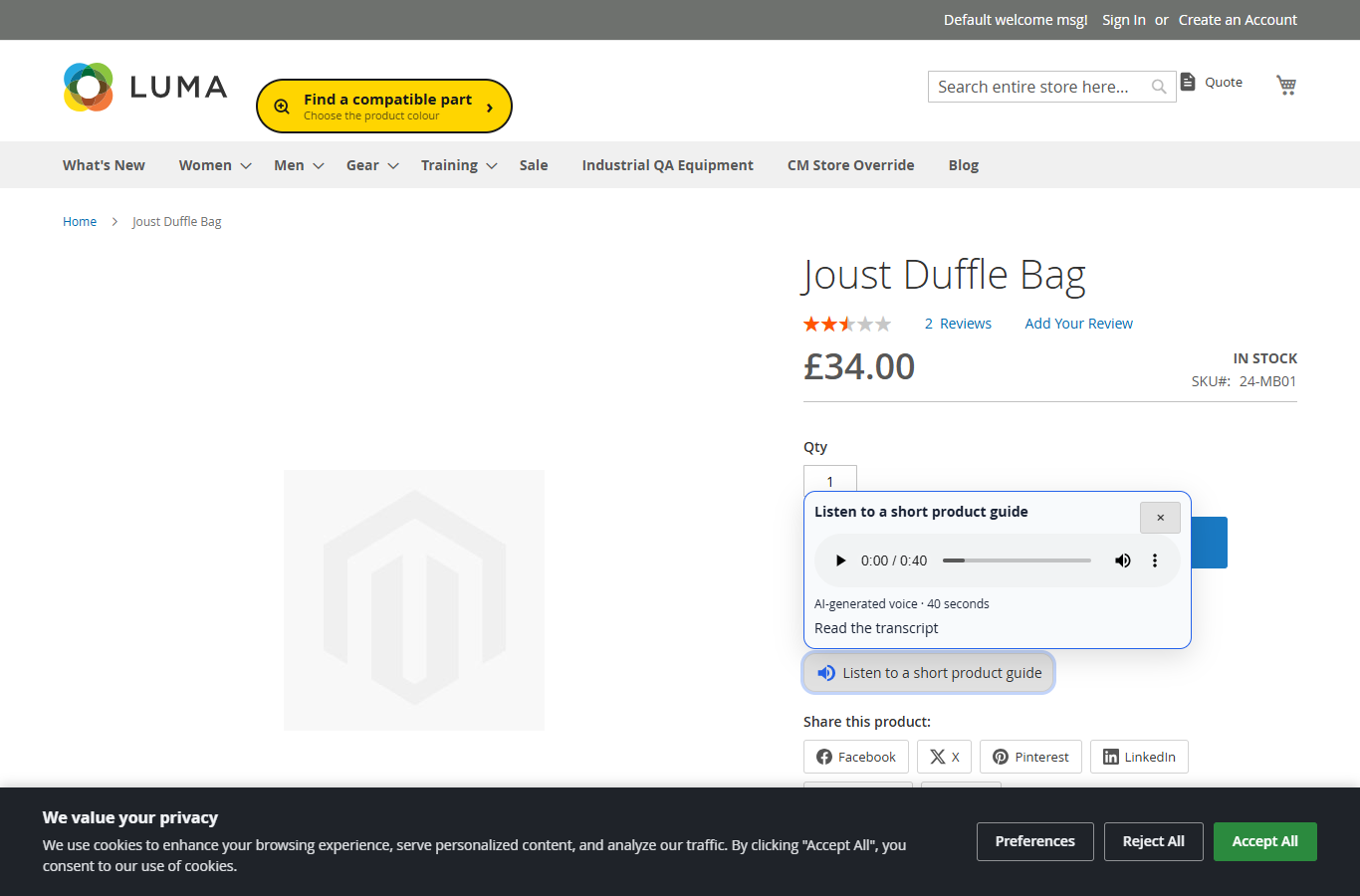
Choose Save script, then Create audio from saved script. VoxFunl rejects audio over 50 seconds. Shorten the script and try again if the voice speaks more slowly than expected. Listen to the result on the Luma product page and check the transcript before using bulk jobs.
Correct pronunciation
Section titled “Correct pronunciation”Open Catalog → VoxFunl Product Audio → Pronunciations. Add an exact written term and the words the voice should say. This is useful for product codes, acronyms and technical names. The shopper-facing transcript retains the original written term; the spoken replacement is sent only to the speech provider.
Use Export CSV to obtain the term,spoken,locale,store_id,enabled columns. For Import CSV, inspect the preview and validate the locale and store view before committing. A changed rule makes audio stale only for scripts whose spoken wording uses that rule. Review the affected scripts and regenerate those recordings.
Generate audio in bulk
Section titled “Generate audio in bulk”Paste up to 5,000 SKUs per batch in Audio Studio. Magento cron creates script drafts in bounded background jobs. Open Bulk Jobs to see progress, failures and retry actions. Review and edit the drafts, then explicitly queue audio creation. A failed or over-length recording is reported; it is not published silently.
For a large catalogue, work in manageable batches and check provider usage, storage and a sample of the resulting pages. Each generated WAV can use several megabytes of Magento media storage. Generate audio again when important product information changes.
Display on Luma or a headless storefront
Section titled “Display on Luma or a headless storefront”Under Storefront Player, choose a popup or a visible native HTML5 audio player. Set the Luma product-page position, button text or accessible icon-only display, and wrapper colours and corner radius. Native audio controls retain the browser’s own styling. Neither mode autoplays.
On a headless storefront, query ProductInterface.voxfunl_audio for the current media URL, duration, transcript and player settings. It returns null when audio is unpublished or stale. The optional Product Shell Bundle integration stores only this metadata in the shell extensions.voxfunl_audio entry; audio bytes remain in Magento media and load when the shopper plays them. Place and style the headless component within your theme independently of the Luma position setting.
Product fact or dictionary changes hide outdated recordings until the script is reviewed and audio is regenerated. Publishing a new recording gives it a fresh media URL.
VoxFunl 1.0.0 was qualified in Magento Open Source 2.4.9 with PHP 8.5 and tested on Luma and an AgenticEcom Astro storefront. Check other combinations on staging. Support: support@agenticecom.net.