

Tested installation
Standalone package installed and compiled on Magento Open Source 2.4.9 / PHP 8.5.10.
LabelsPro lets you build a product badge or dispatch banner and target it by attribute, category, SKU, store, customer group and schedule. For example, a tools store could mark a genuine discount on a cordless drill and show a separate handling-time message for spare parts. Check the message on the actual product page before relying on it in a campaign.
This guide covers the 1.0.8 standalone package submitted to Adobe Commerce Marketplace. Its Luma templates render badges and banners; its GraphQL endpoint exposes evaluated product signals for a separately built storefront. The full AgenticEcom Astro product-shell adapter is a separate integration and is not included in this standalone package.
These commands are for a direct AgenticEcom purchase using the key on your My Licences page. If you bought the module through Adobe Commerce Marketplace, use Adobe’s Composer repository and access keys as described in Getting Started; a Marketplace purchase should not require a second AgenticEcom licence.
# 1. Register the AgenticEcom repository (once per store)composer config repositories.agenticecom composer https://repo.agenticecom.netcomposer config --global --auth http-basic.repo.agenticecom.net <YOUR-LICENCE-KEY> x
# 2. Require this modulecomposer require agenticecom/module-labelspro
# 3. Apply itphp bin/magento module:enable AgenticEcom_LabelsProphp bin/magento setup:upgrade && php bin/magento setup:di:compile && php bin/magento cache:flushTested installation
Luma
Headless
Other versions
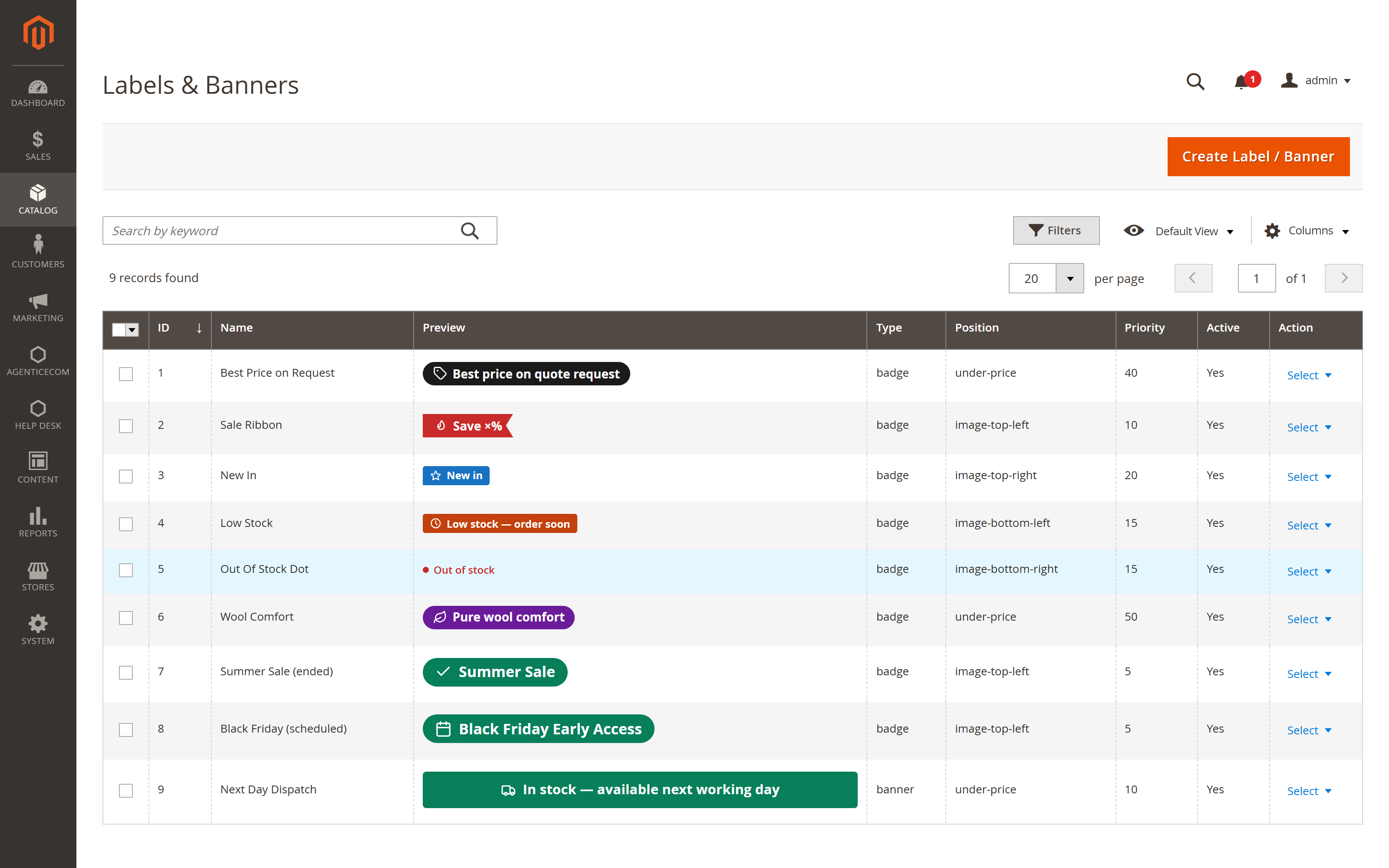
A badge is small and sits on the product image — the sale ribbon, “New in”, a low-stock warning. A banner is a full-width strip under the price, for a sentence rather than a word: “In stock — available next working day”.
Both are built in the same designer and both follow the same targeting rules. The grid shows a live preview of every label exactly as it will render, so a label is approved before it reaches a product page.
Placement
Presets
Colour roles
Sizes
Conditions match on:
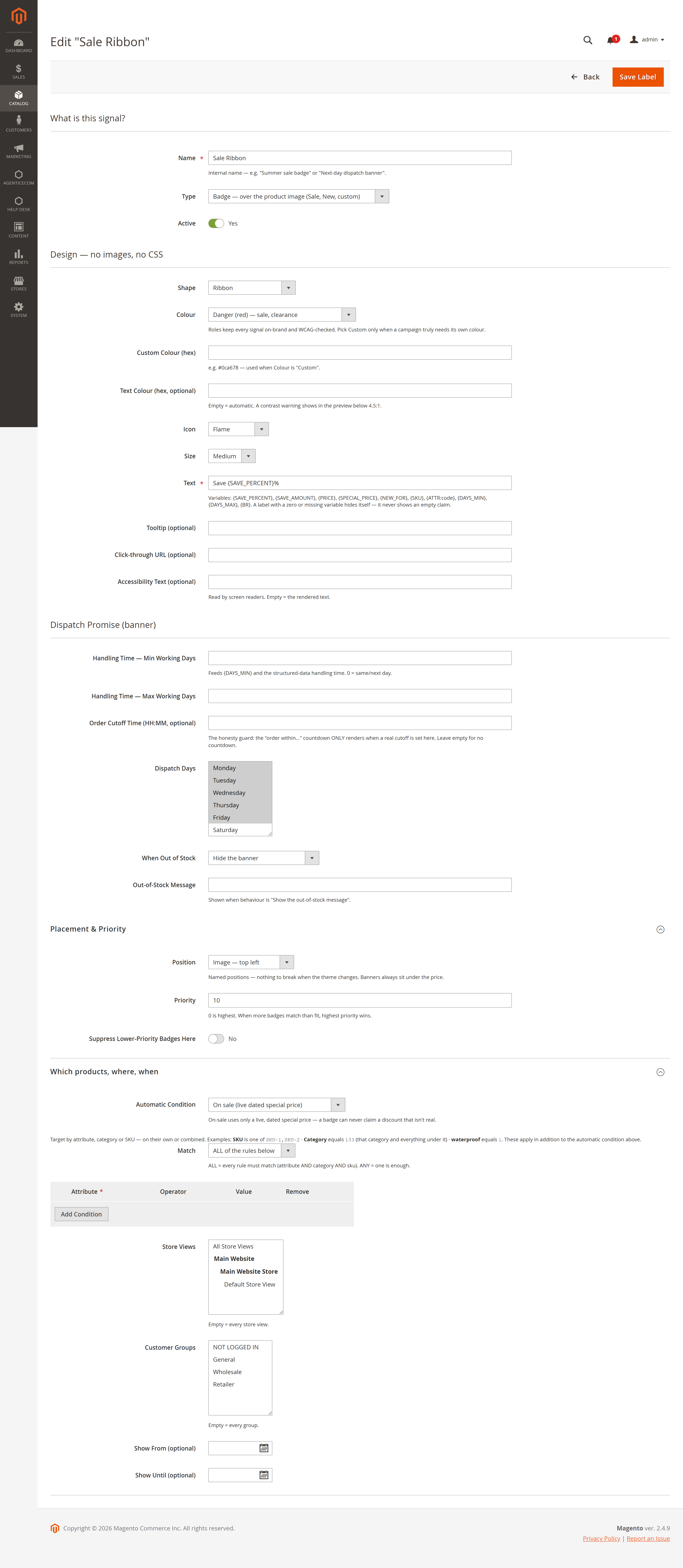
Combine them with ALL (every condition must match) or ANY (one is enough). That covers the two things merchants actually ask for: a label across a whole range, and a label on one flagship product.
Go to Catalog → LabelsPro → Labels & Banners and click Create Label / Banner.
Choose the family — badge or banner — and where it sits.
Design it: preset, colour role, size, an optional icon, and the text.
Add conditions, and set the mode to ALL or ANY.
Set the priority if this label competes with others (see below), choose the store views and customer groups, and save.
Every label has a priority; a lower number is evaluated first. The number of badges at one position is limited by Max Badges per Position (default 2). A label can also be set to hide lower-priority labels at the same position, so a clearance ribbon can suppress a later “New in” badge rather than stacking with it. Only the first eligible dispatch banner is shown.
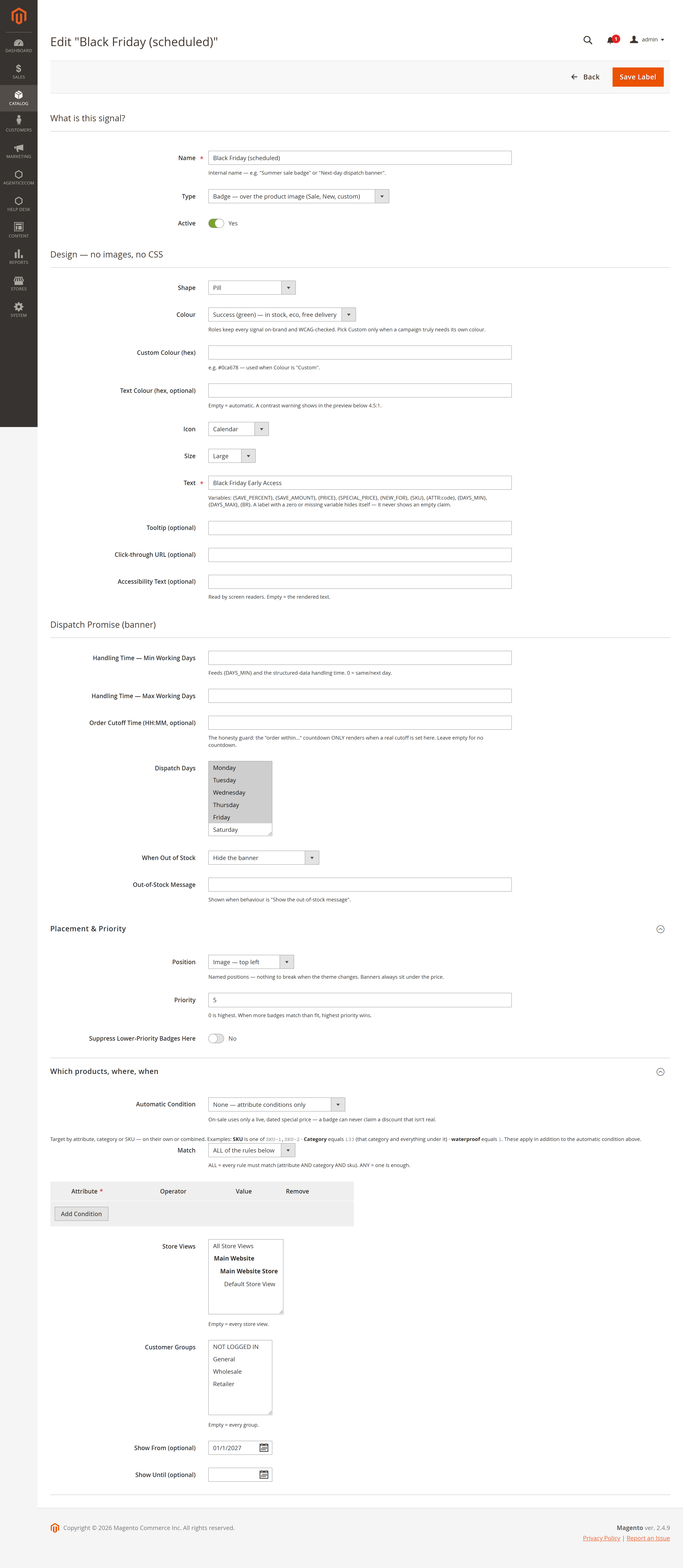
A label can be given a show window — the dates it starts and stops appearing. A Black Friday badge goes live on the day and retires on its own, with nobody remembering to switch it off at midnight. Labels outside their window are simply not rendered.
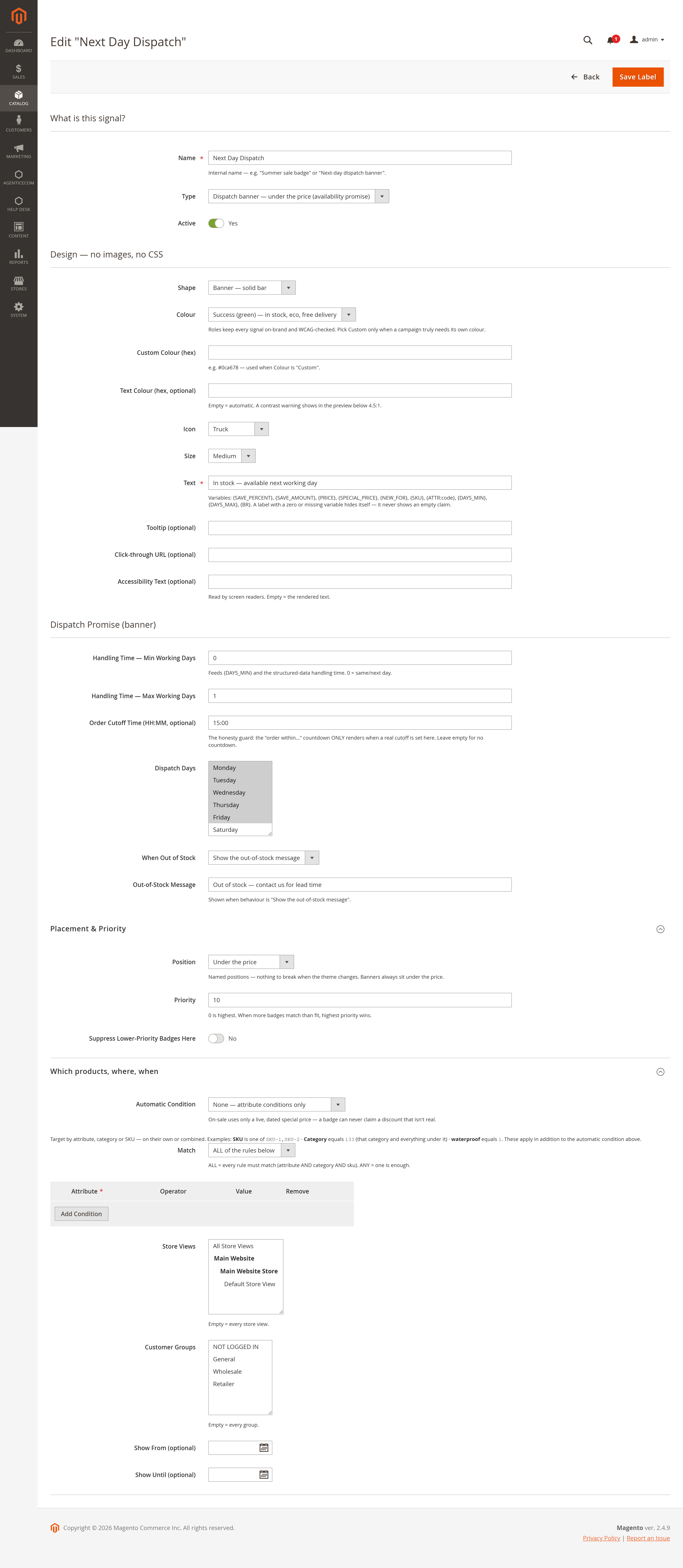
There is also an out-of-stock behaviour for dispatch banners, so a “Next working day dispatch” banner disappears rather than making a promise the warehouse cannot keep.
Choose Banner, write a specific message such as “Typically dispatches in 3–5 working days”, and set matching minimum and maximum handling days. Select the dispatch days and what the banner should do when the product is out of stock. A countdown appears only when an actual order cutoff time is configured; leave that field empty if you do not offer a cutoff. Start with a small SKU or attribute selection and check an in-stock and out-of-stock product before widening the rule.
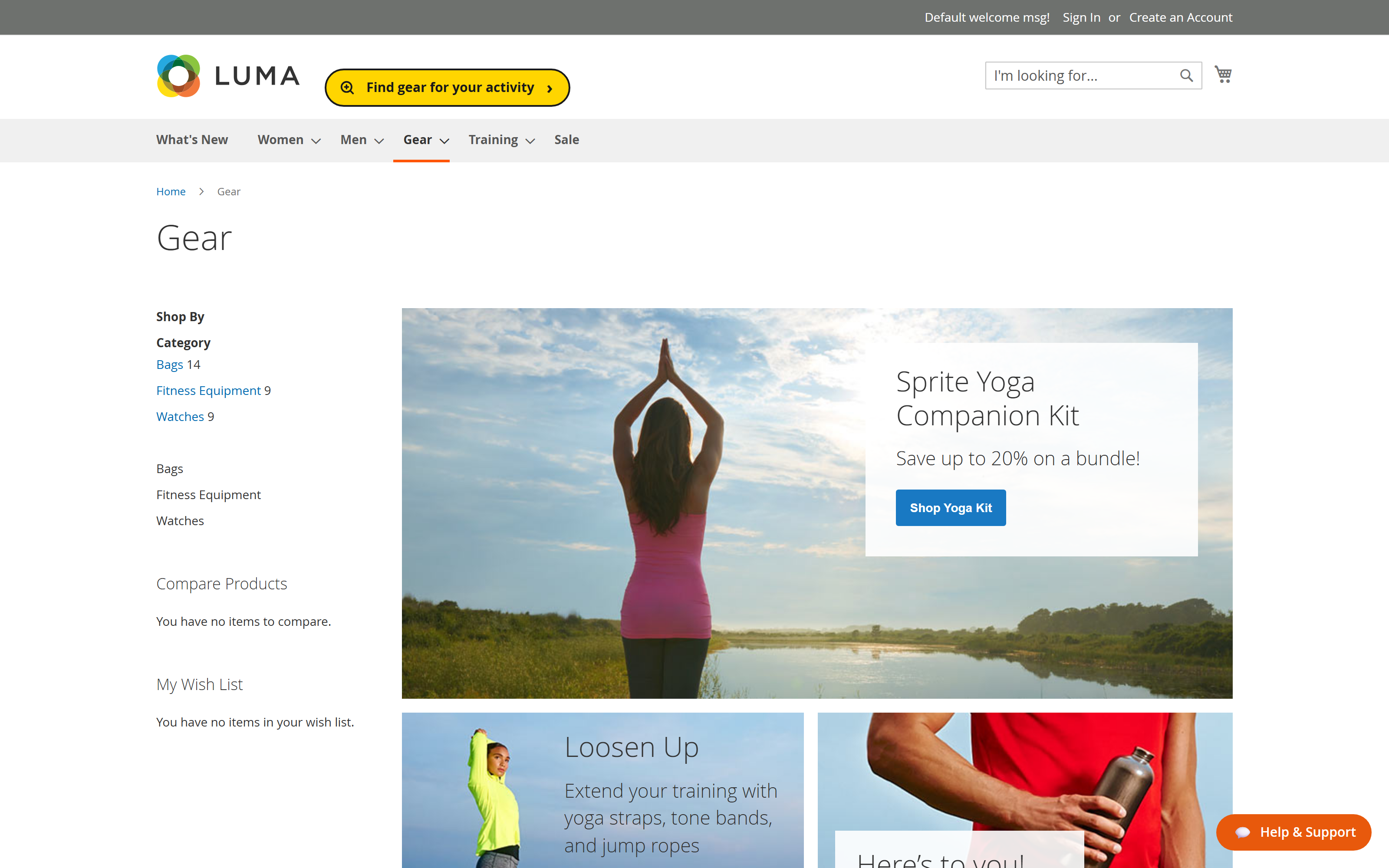
Badge overlays, under-price badges and compact dispatch banners can appear on Luma category and search cards. Enable the separate listing badge and banner switches as needed, then inspect an eligible and an ineligible product in both a guest session and the targeted customer group.
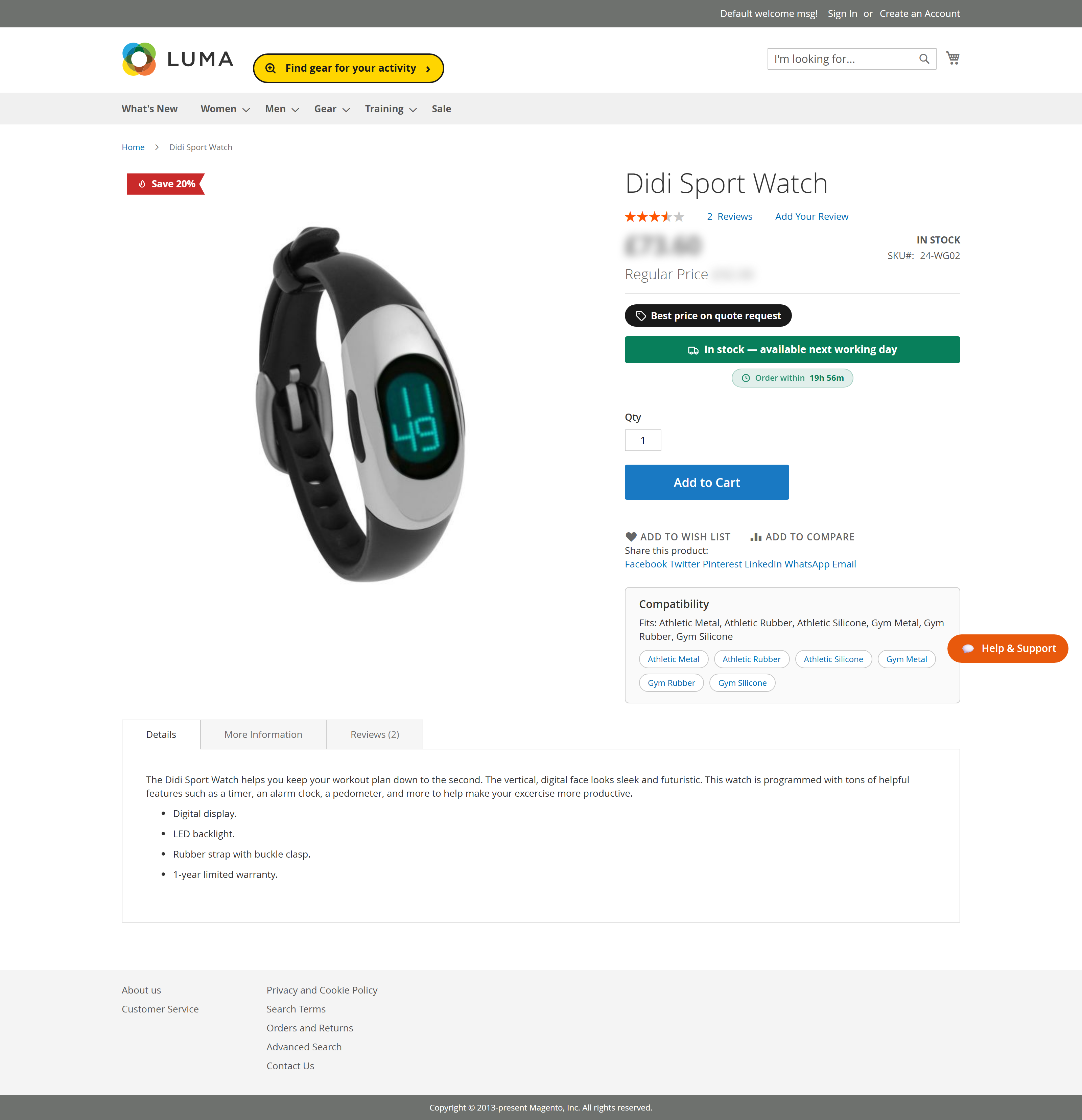
The badge sits with the gallery and the banner sits under the price, where a shopper reads it while deciding rather than after.
The standalone 1.0.8 package exposes evaluated label data through GraphQL. A separate frontend must render the signals and vary its cache by customer group where rules target groups. The full AgenticEcom Astro product-shell adapter is separate from this package. Where that integration is installed, sync product data after a label edit and inspect listing and product-page output.
Stores → Configuration → AgenticEcom → LabelsPro
| Setting | What it does |
|---|---|
| Enable LabelsPro | Master switch. |
| Show badges on listings | Whether badges render on category and search listings as well as product pages. |
| Show Dispatch Banner on Product Listings | Shows a compact dispatch banner on eligible Luma category and search cards. |
| Max Badges per Position | Limits how many matching badges can share an image position; default 2. |
The 1.0.8 package does not add partial standalone Offer structured data or a Structured Data setting. Keep price, availability and shipping markup in your store’s primary product schema.
Why isn’t my badge showing? Check the master switch, the label’s Active state and show window, the target store and customer group, and whether the product meets the automatic and ALL/ANY conditions. A higher-priority badge may occupy the same position. If the text needs a discount variable, verify that the product has a current special price and a non-zero saving.
Why isn’t my dispatch banner showing? Check that its product conditions match, its handling promise is configured, and its out-of-stock setting allows a message for the product’s current availability. Refresh Magento cache after a configuration change and inspect the product page again.
Can I put a label on just one product? Yes — a SKU condition targets exactly one product, or a list of them.
Can I label a whole category? Yes, and a category condition covers everything beneath it, so you name the parent rather than listing every child.
What happens when two labels want the same spot? The higher priority wins. A label can also be set to hide lower-priority ones so they do not stack.
Do labels work on a headless storefront? The package exposes evaluated product signals through GraphQL. Your frontend must render them and handle customer-group-aware caching. The full AgenticEcom Astro product-shell adapter is separate.
Will a promotion badge disappear on its own? Yes, if you give it a show window. It appears on the start date and stops on the end date without anyone switching it off.