

Product Feeds
Product Feeds: setup guide
Recorded on version 1.0.7 · Narrated walkthrough · English captions
Jump to a chapter 8 chapters
Read the full video transcript
Product Feeds 1.0.7 — Magento Admin setup

00:00:00 — Set up Product Feeds
Welcome to the Agentic Ecom Product Feeds Admin guide. We'll walk through the main setup screens and the checks to make before using the module. This guide assumes the extension is already installed.

00:00:12 — Open the module workspace
Start in Magento Admin and open the Product Feeds workspace. Use an Admin role with the required permissions. We'll review the setup controls without running bulk changes. Keep a staging backup and prepare a small, representative example before applying a workflow to live catalogue data.

00:00:31 — Open feed profiles
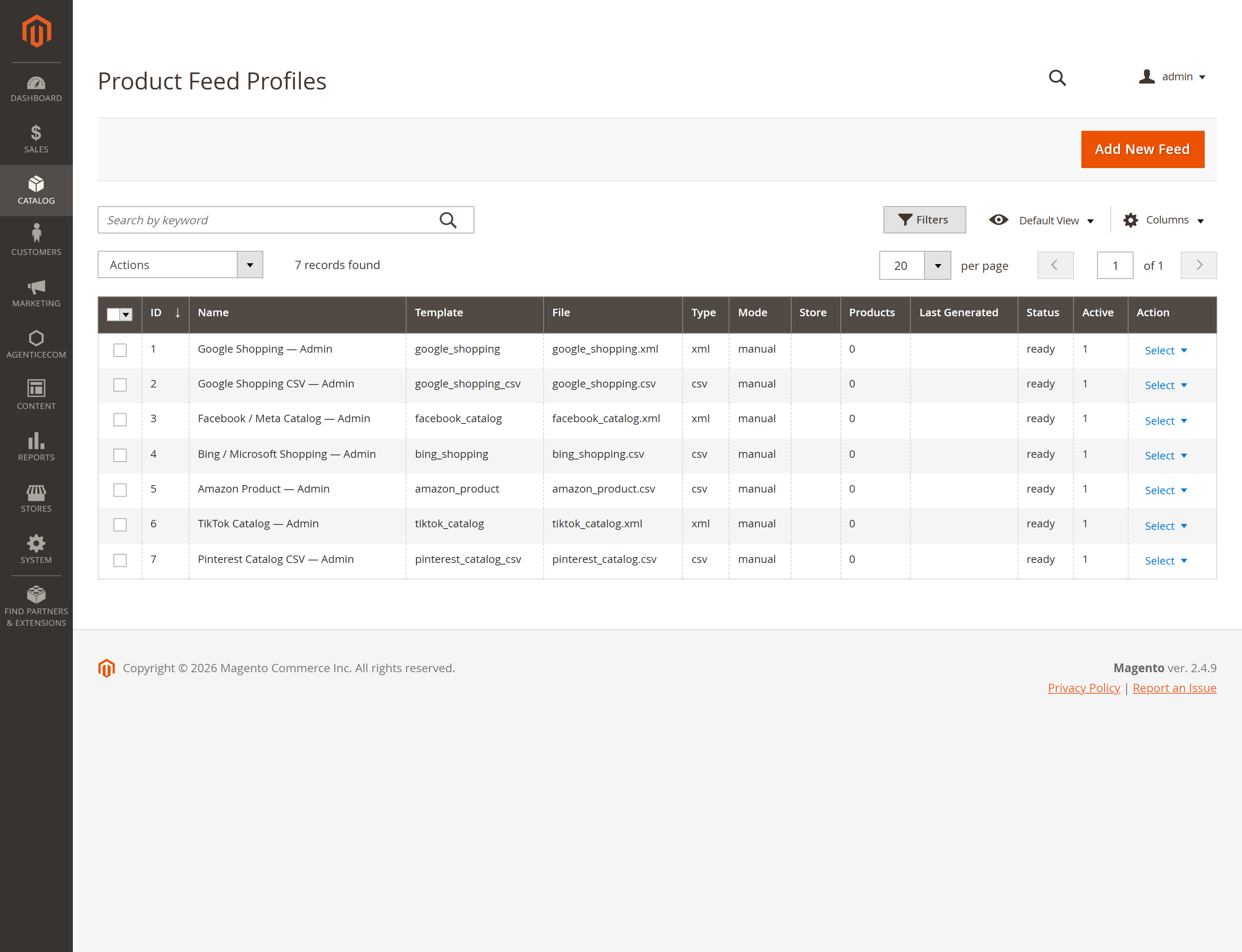
Open Catalog, Product Feeds, Feed Profiles and choose Add New Feed. Create one profile for a specific destination and store view. Keep it inactive while you review its mapping and content; an editable starter template is a starting point, not a guarantee of channel acceptance.

00:00:51 — Choose the template and scope
Choose the required starter template or a custom X M L, C S V or T S V format. Review the store view, product conditions, visibility and stock exclusions. Load Template Content into the Content tab, then check every destination field against your catalogue data.

00:01:11 — Review category mapping
Use Category Mapping where the destination needs its own taxonomy. Check a representative product from each important category. Confirm identifiers, prices, currency, availability, shipping and tax information rather than assuming Magento's internal category names satisfy the channel's rules.

00:01:31 — Validate before scheduling
Generate a sample file and inspect Preview Feed or Download before activating delivery. Check product URLs, especially on a headless storefront with a separate public base URL. Review Generation Log for errors. Activate the profile and its schedule only after the sample meets the destination's current requirements.

00:01:53 — Save and verify your setup
When your required settings are complete, use the screen's Save control and wait for Magento's confirmation. Then reopen the record or configuration and check the saved values at the intended scope. If the storefront still shows earlier settings, refresh the relevant caches. Test your own configuration before using it with customers.

00:02:14 — Your setup checklist
That's the Admin setup walkthrough for Product Feeds. Check permissions and scope, review the module-specific settings, then save and verify a small staging example. Use the written guide at user guides dot Agentic Ecom dot net for installation details, complete field references and any separate storefront integration steps.
Current release: 1.0.7. Product Feeds generates Magento catalogue files in XML, CSV and TSV. It supplies seven editable starting templates: Google Shopping XML or TSV, Meta catalog CSV, Microsoft Shopping TSV, and custom XML, CSV or TSV. A starter template is not a guarantee that a destination will accept your feed. Review your identifiers, prices, currency, availability, shipping, tax and channel policy before activating delivery.
Install or upgrade
Section titled “Install or upgrade”For a direct AgenticEcom purchase, use the Composer repository and licence key in My Licences:
composer config repositories.agenticecom composer https://repo.agenticecom.netcomposer config --global --auth http-basic.repo.agenticecom.net <YOUR-LICENCE-KEY> xcomposer require agenticecom/module-product-feeds:^1.0.7php bin/magento module:enable AgenticEcom_ProductFeedsphp bin/magento setup:upgradephp bin/magento setup:di:compilephp bin/magento cache:flushFor an Adobe Marketplace purchase, use Adobe’s repository and access method, then run the Magento commands. Keep only one module copy. Magento cron must run for scheduled generation.
Create and check a feed
Section titled “Create and check a feed”- Open Catalog → Product Feeds → Profiles and choose Add New Feed.
- Choose a starter template or a custom format. Keep the profile inactive while you review its field mapping, store view, product conditions, visibility and stock exclusions. Use Load Template Content to populate the Content tab.
- Generate a sample file and inspect Preview Feed or Download. Check URLs against your storefront; a headless store can set its public base URL for product links.
- Compare the file with your destination’s current requirements. Activate the profile and schedule only after validation.
Schedule and deliver
Section titled “Schedule and deliver”For an automatic run, choose By Schedule, select at least one day and time in the store view’s timezone, and activate the profile. Magento cron processes due profiles. The Generation Log shows result, row count, file size and duration. Optional FTP/SFTP delivery needs a reachable destination and credentials. Gzip compression and UTM parameters are optional.
Version 1.0.7 withdrew templates that could not accurately represent review, promotion or local-inventory data. An existing profile using a withdrawn template fails with a clear error instead of emitting misleading content. The release also improved schedule validation, protected Admin Delete with POST, and tightened output filename and malformed-condition handling.
The exact release generated XML and CSV files in Magento Open Source 2.4.9 / PHP 8.5 QA. The Composer package allows PHP 8.3, 8.4 and 8.5; validate other Magento/PHP combinations and channel acceptance for your catalogue. Support: support@agenticecom.co.uk.