

Magento
Check the exact release against your Magento Open Source version.
Recorded on version 1.0.2 · Narrated walkthrough · English captions
Product Shell Bundle 1.0.2 — Magento Admin setup

00:00:00 — Set up Product Shell Bundle
Welcome to the Agentic Ecom Product Shell Bundle guide. We'll use Magento Admin to review the setup and explain the handoff to your headless storefront. This walkthrough covers stable version 1 point 0 point 2 and assumes the extension is installed.

00:00:16 — Open the product snapshot
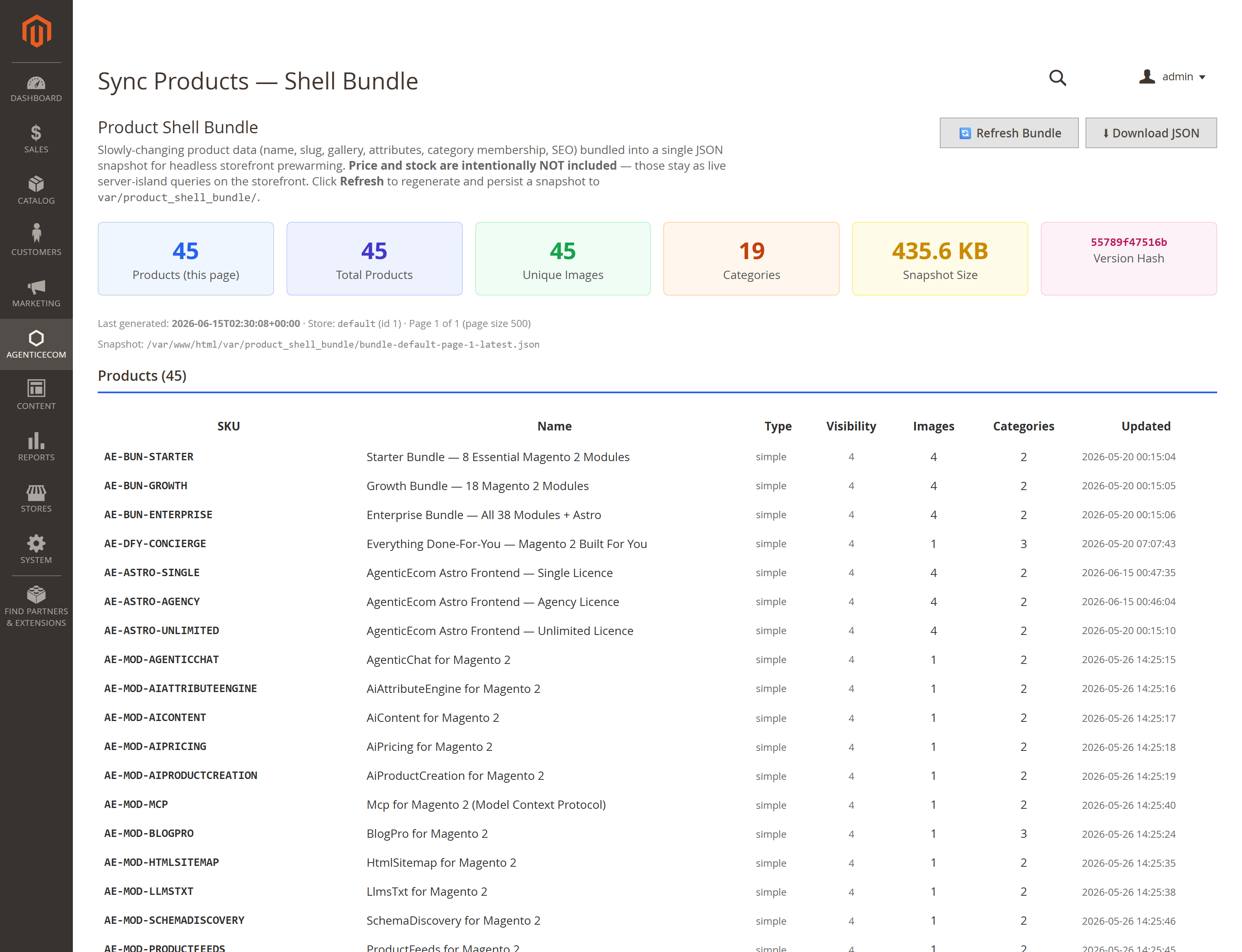
Open Agentic Ecom, Sync Data, Product Shell Bundle. The stable release bundles slowly changing product details, such as names, images, attributes, categories and search metadata. Price and stock are intentionally excluded from this shell; your frontend must obtain those through its current price and availability flow.

00:00:39 — Refresh the Magento bundle
On your store, Refresh Bundle regenerates the snapshot. Wait for its result and check the generation time. Review the page number and page size as well as the product counts: a large catalogue can span multiple bundle pages. Your storefront integration needs to fetch all the required pages.

00:00:58 — Review the product and image data
Inspect the product summary, categories and image references. If a product is missing, check that it is enabled and assigned to the right website and store context in Magento. A snapshot is a copy of the source catalogue, so correct the source before refreshing again.

00:01:16 — Sync and verify the storefront
After refreshing the Magento bundle, use Sync Products in Astro Admin. Check the products and categories reported there, then prebuild the affected pages. Verify names, images and navigation as well as current price, stock and add-to-cart behaviour. A product shell alone is not a complete checkout integration.

00:01:38 — Your setup checklist
Your next steps are to check the store and bundle pagination, refresh then sync the catalogue, verify pages plus live price and stock. Use a staging store for the end-to-end check. The complete installation and integration reference is at user guides dot Agentic Ecom dot net.
A headless storefront that calls Magento GraphQL for every product page is slow and load-sensitive. Product Shell Bundle solves that by pre-building a “shell” for each product — all the slowly-changing data (name, description, media, attributes, variants, customizable options, categories, related products, reviews) plus indexed price and stock — into a paginated JSON snapshot and a matching GraphQL feed. A storefront can render cached shell fields, then request price and stock separately. Verify the cache and checkout values on your deployment.
Install Product Shell Bundle with Composer using your AgenticEcom licence key (find it on your My Licences page — one key unlocks every module you own):
# 1. Register the AgenticEcom repository (once per store)composer config repositories.agenticecom composer https://repo.agenticecom.netcomposer config --global --auth http-basic.repo.agenticecom.net <YOUR-LICENCE-KEY> x
# 2. Require this modulecomposer require agenticecom/module-product-shell-bundle
# 3. Apply itphp bin/magento setup:upgrade && php bin/magento setup:di:compile && php bin/magento cache:flushMagento
PHP
Delivery
Extensible
Each product shell carries fields a PDP can cache. Current price and stock may need a separate request:
| Group | Includes |
|---|---|
| Core | sku, name, url_key, type, descriptions, meta fields |
| Media | base/small/thumbnail/swatch images + full gallery |
| Commerce | indexed price_range and stock_status (anonymous group) |
| Variants | configurable options + per-variant price/stock |
| Options | customizable options (drop-down, radio, field…) with prices |
| Relations | category IDs, related/upsell/cross-sell SKUs |
| Social proof | rating summary, review count, recent approved reviews |
| Type extras | bundle / grouped / downloadable specifics |
{ productShellBundle(page_size: 100, current_page: 1) { total_count total_pages current_page products { sku name type_id stock_status price_range { minimum_price { final_price { value currency } } } } categories { category_id name url_path } }}Paginated with a maximum of 500 products per request, so larger catalogues can be warmed page by page. A store with 5,000 products is fetched across multiple pages.
{ productShellSingle(sku: "24-MB01") { sku name stock_status price_range { minimum_price { final_price { value currency } } } } }A surgical single-product refresh for webhook handlers — re-fetch just the product that changed instead of rebuilding the whole bundle. Measure request time in your environment.
From Sync Products → Shell Bundle, click Refresh Bundle to write a snapshot to
var/product_shell_bundle/, then Download JSON (or pull it from your build pipeline). A
version hash on every bundle lets you skip rebuilds when nothing changed.
Only enabled products
Both the bundle and the single-product feed return enabled products only — a disabled product never leaks into the snapshot or via a guessed SKU.
Anonymous-accurate pricing
Price and stock are read from Magento’s price index and MSI stock view for the NOT LOGGED IN group, so the shell matches what an anonymous shopper sees — your storefront overlays customer-specific pricing live.
Approved reviews only
Embedded reviews are the most recent approved ones, store-scoped — ready for the reviews block and aggregateRating JSON-LD.
Safe downloads
The admin JSON download is permission-gated and the store code is sanitised, so the snapshot path can’t be manipulated.
Most product data barely changes between catalogue edits, so serving it from a pre-warmed snapshot can reduce repeated product-data requests. Fetch price and stock separately when your storefront needs current values, and verify them against the checkout response.
No — the bundle and the productShellSingle query both filter to enabled products, so a disabled
product can’t appear in the snapshot or be pulled by guessing its SKU.
Call productShellSingle(sku: …) (or your webhook handler does) to re-fetch that single shell in
without rebuilding the whole bundle. Actual timing depends on the catalogue and server.
Yes — a module can register a shell contributor that adds a keyed entry to each product’s
extensions map, without modifying this module. A misbehaving contributor is logged and skipped, so
it can never break the build. Check exact-release compatibility before deployment.