

Tested installation
Standalone package installed and compiled on Magento Open Source 2.4.9 / PHP 8.5.10.
Product Fit Finder turns your product attributes into a guided finder: the shopper answers two or three questions — make, then model, then what they need — and lands on the products that actually fit. When combination pages are enabled, useful selections can have their own URL and use the store’s product-listing controls. The standalone package contains Luma storefront views; the Astro integration belongs to the full AgenticEcom platform.
These commands are for a direct AgenticEcom purchase using the key on your My Licences page. If you bought the module through Adobe Commerce Marketplace, use Adobe’s Composer repository and access keys as described in Getting Started; a Marketplace purchase should not require a second AgenticEcom licence.
# 1. Register the AgenticEcom repository (once per store)composer config repositories.agenticecom composer https://repo.agenticecom.netcomposer config --global --auth http-basic.repo.agenticecom.net <YOUR-LICENCE-KEY> x
# 2. Require this modulecomposer require agenticecom/module-product-fit-finder
# 3. Apply itphp bin/magento setup:upgrade && php bin/magento setup:di:compile && php bin/magento cache:flushTested installation
Luma
Headless
Other versions
A finder — a chain — is an ordered list of product attributes. Pick manufacturer, then
model, then accessory_type, and the module does the rest: it asks for each in turn, offers
only the values that still have products behind them, shows a live count against each option, and
ends on the matching set.
Because the questions come from attributes your catalogue already has, a finder stays correct as the catalogue changes. Add a product with a new model value and that model appears as an option; sell out of everything for a combination and it stops being offered when your store hides out-of-stock products. If your store displays them, they remain in the finder results.
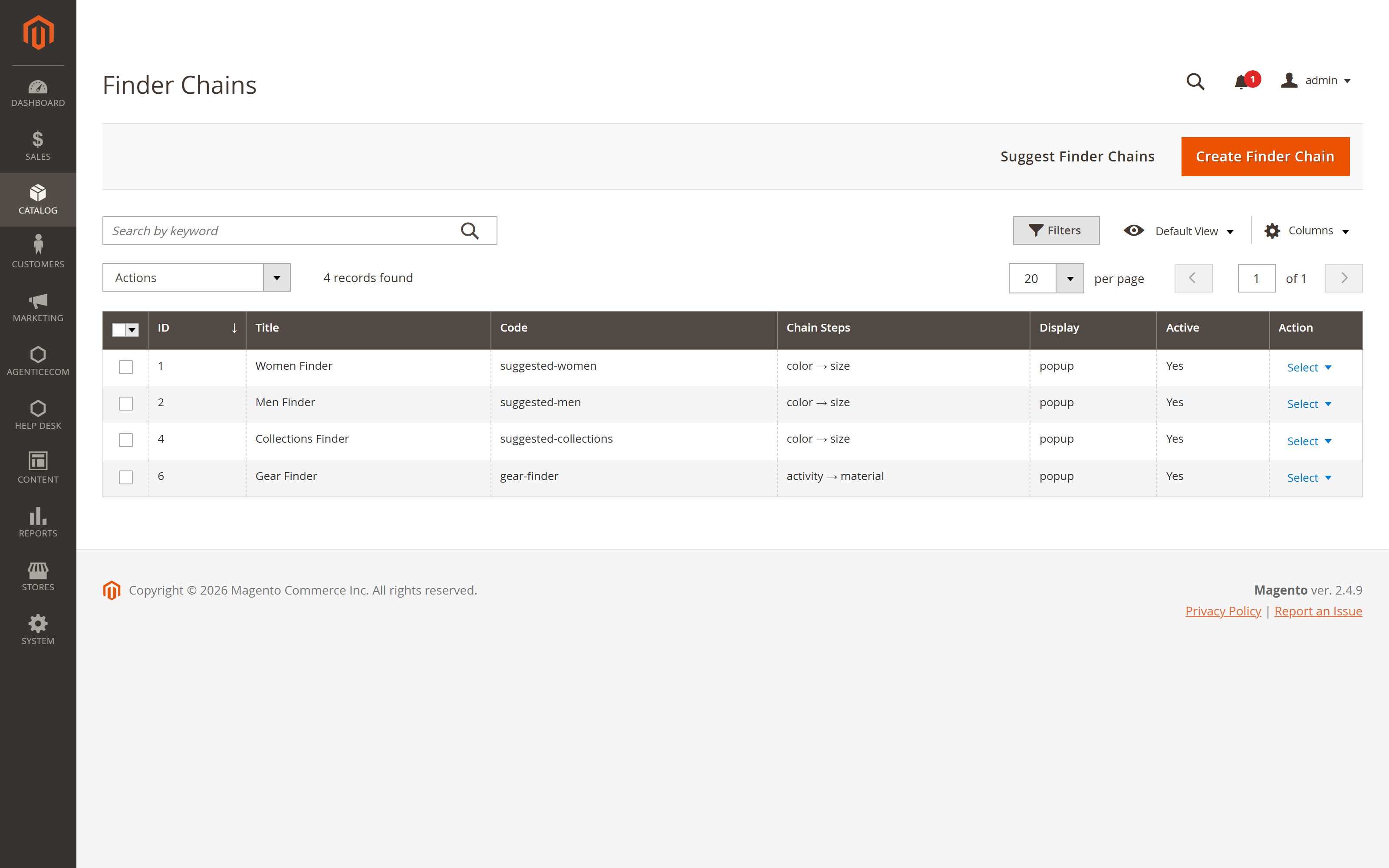
Go to Catalog → ProductFitFinder → Finder Chains and click Add Finder Chain.
Give it a code (used in the URL) and a title. The Invitation Label is the wording the shopper sees when this finder is offered on its own — “Find the right radio accessories”.
Add a step per attribute, in the order you want them asked, and label each step in the shopper’s language: “Which radio do you have?” reads better than “manufacturer”.
Set the scope — the categories this finder searches within. Leave it empty to search the whole catalogue.
Choose the store views it runs on, and whether it appears in the header.
Save and enable the chain. Test each question against products with and without the expected attribute values. Enable combination pages separately if you want public result URLs.
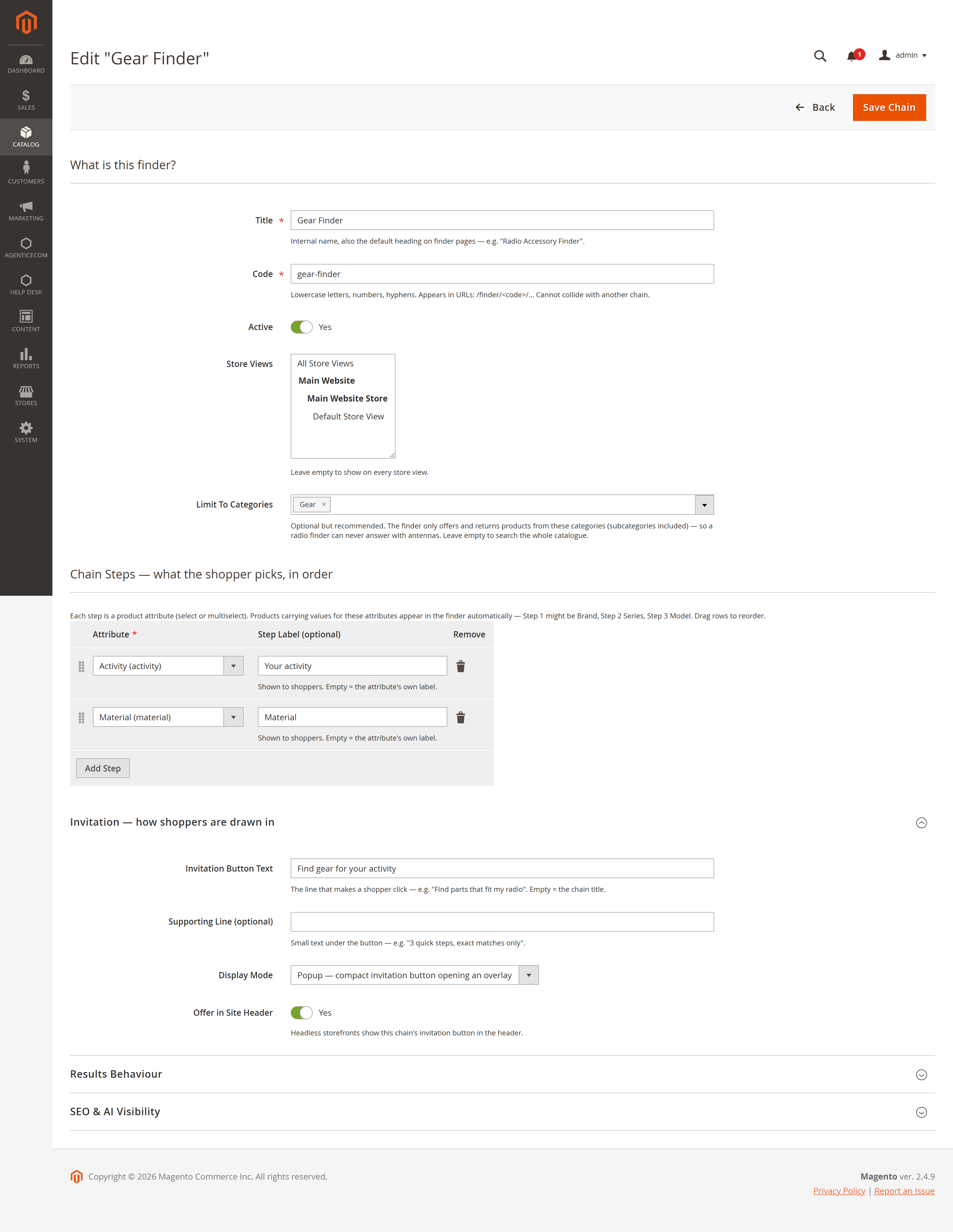
Further down the same form:
Category scope
Single result
Indexing threshold
Remembered selection
You do not have to design the first finder from a blank page. Suggest Chains reads the catalogue and proposes finders that would actually work: it looks at which attributes are filled in often enough to be worth asking about, how many distinct values each has, and how they overlap. Accept a suggestion as it stands, edit it, or ignore it and build your own.
This is ordinary statistics over your own products — no AI, and nothing leaves the store.
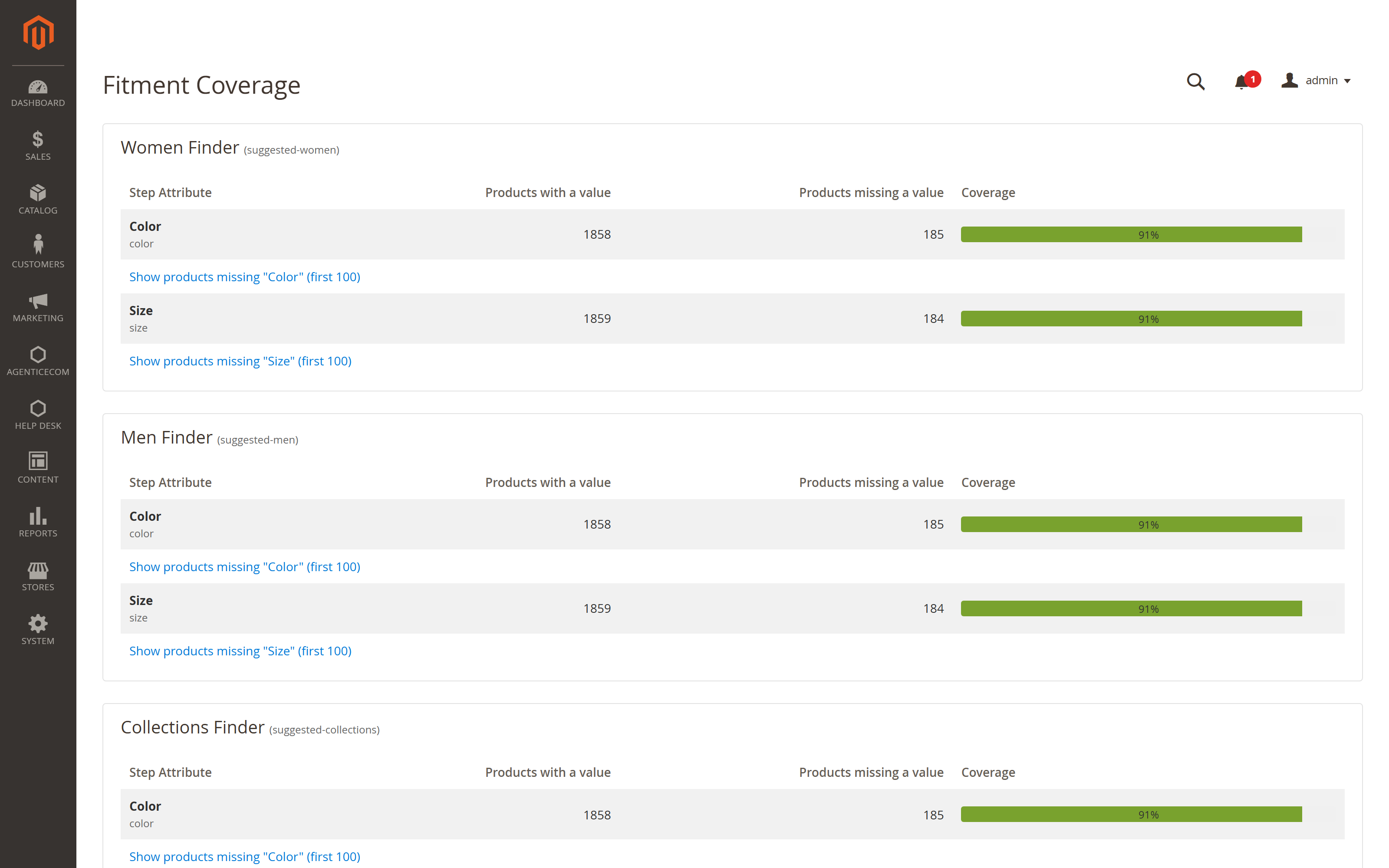
A finder is only as good as the attribute data behind it. Fitment Coverage reports, for each finder and each of its steps, how many products carry a value for that attribute and how many are missing one, as a percentage and a bar — so a step sitting at 60% tells you immediately that four products in ten can never be found through it.
Each row links straight to the products missing that value, so the fix is a filtered list to work through rather than a hunt. Coverage is the difference between a finder that finds things and one that quietly dead-ends.
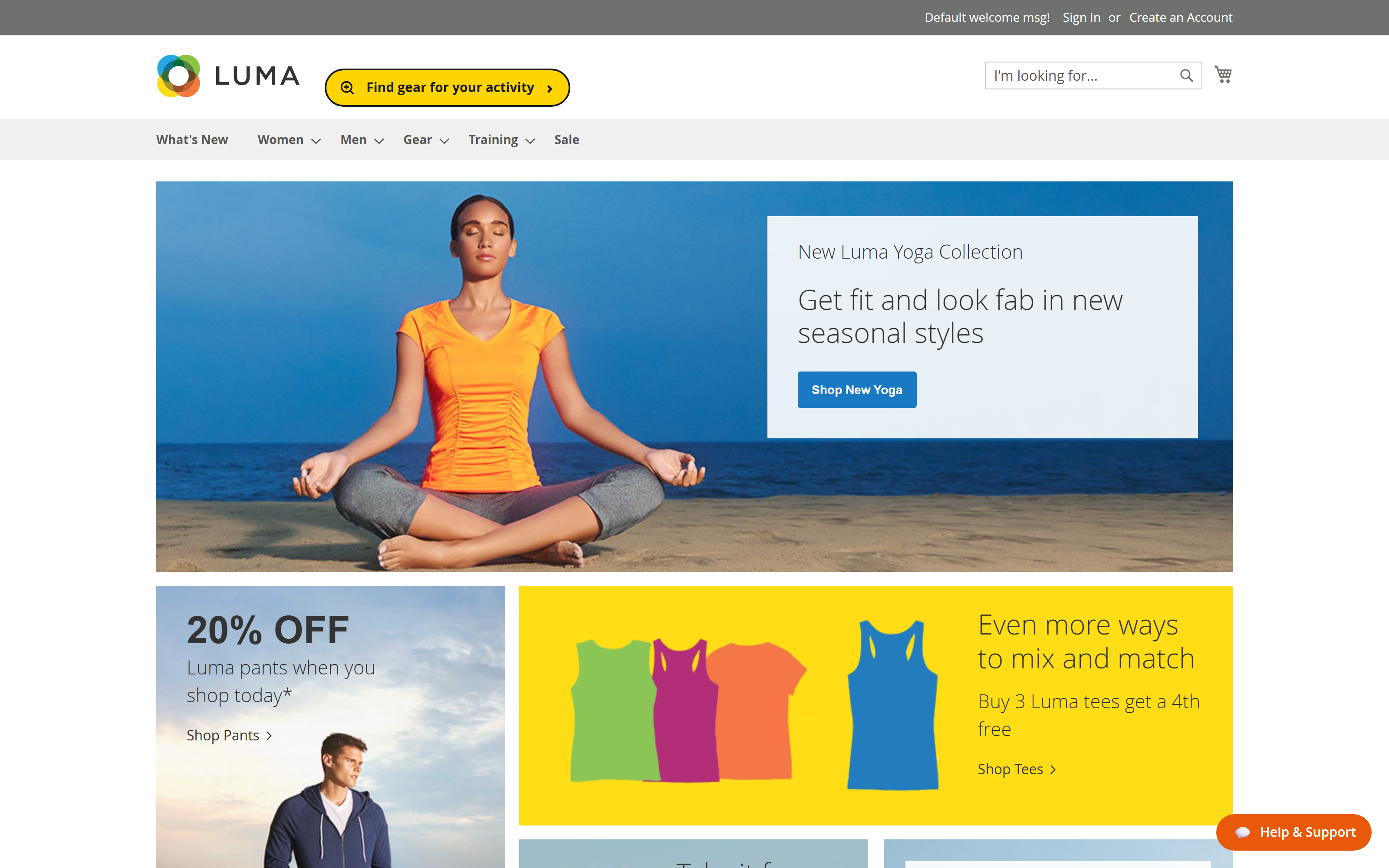
The launcher sits in the header. With one finder configured it opens straight into the first question; with several it opens a chooser so the shopper picks the finder they want, each shown with the steps it will ask.
The full AgenticEcom platform can read finder configuration through its separate synced-store integration. Confirm the required adapter is installed, sync the store data, then test the launcher and combination routes. The standalone Luma package does not include that adapter.
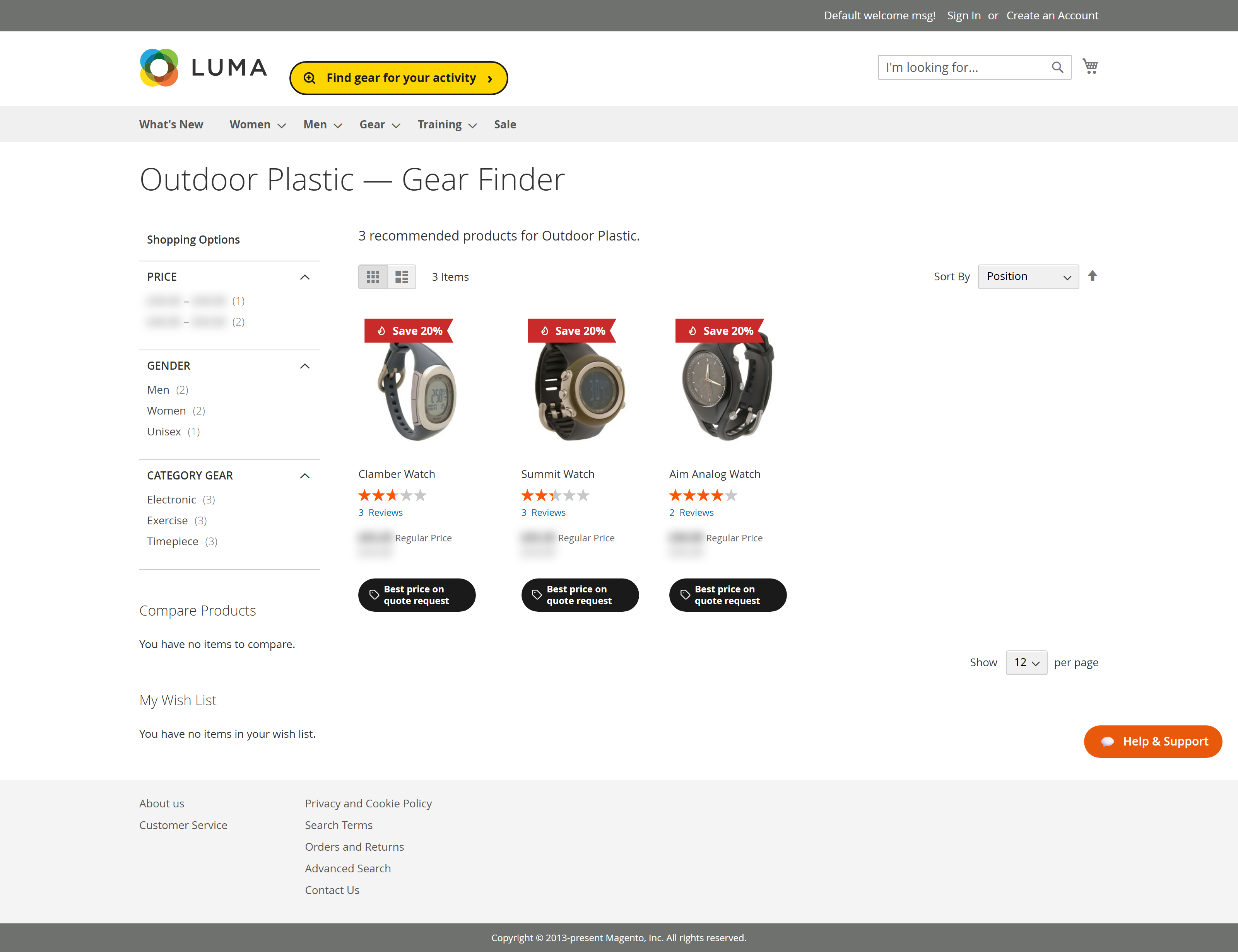
The result of a finder is not a stripped-back search page. It carries the layered-navigation filters, the sort control, the page-size selector, the grid/list toggle and paging — so a shopper who wants to narrow further can, without starting again.
When combination pages are enabled, selected answers can have a URL such as
/finder/radio/motorola/dp4400. Depending on configuration and product count, the page can include:
Stores → Configuration → AgenticEcom → ProductFitFinder
| Setting | What it does |
|---|---|
| Enable ProductFitFinder | Master switch for finders, combination pages and the PDP fits section. |
| Headless Frontend Base URL | For an integrated headless store, set the intended public origin and verify rendered links, canonicals and sitemap entries. Leave empty on Luma. |
| Finder Button Label | The wording on the launcher when it offers every finder. A launcher pinned to one chain uses that chain’s Invitation Label instead. |
| Remember Shopper Selection | Keep the chosen machine across pages. |
| Combination Landing Pages | Generate the crawlable page per selection. |
| FAQ Block on Combination Pages | Add the generated question and answer with FAQPage structured data. |
| Include Combination Pages in Sitemap | List only combinations at or above each finder’s threshold. |
Do I need new attributes to use this? No. A finder is built from attributes you already have. New attributes only help if the questions you want to ask are not in the catalogue yet.
What happens when a combination has no products? The finder is designed to omit choices without matching products. Test combinations in your catalogue, and use the coverage report to find missing attribute values.
Does it work on a headless storefront? The full AgenticEcom platform has a separate synced-store adapter for the finder. Confirm it is included in your installation and test the public routes after a data sync.
Is this just search with extra steps? The finder asks ordered attribute questions and narrows the catalogue from each answer. Public combination pages are optional; configure their indexing threshold and review their content.