

Magento
Open Source 2.4.9 GA (and later 2.4.x).
Magento’s native custom options are defined per product, so a “Gift Wrap” or “Engraving” option has to be rebuilt by hand on every product that needs it — and changing it later means editing each product again.
Global Custom Options fixes that. You build an option set once as a template, assign it to as many products as you like, and the module writes those options onto each product as real Magento custom options. Templates can be translated per store view, imported from a product that already has options, and bulk-managed by CSV.
Install Global Custom Options with Composer using your AgenticEcom licence key (find it on your My Licences page — one key unlocks every module you own):
# 1. Register the AgenticEcom repository (once per store)composer config repositories.agenticecom composer https://repo.agenticecom.netcomposer config --global --auth http-basic.repo.agenticecom.net <YOUR-LICENCE-KEY> x
# 2. Require this modulecomposer require agenticecom/module-custom-options
# 3. Apply itphp bin/magento setup:upgrade && php bin/magento setup:di:compile && php bin/magento cache:flushMagento
PHP
Storefront
Scale
Enable the module: Stores → Configuration → AgenticEcom · Catalog & Products → Global Custom Options → Enable = Yes.
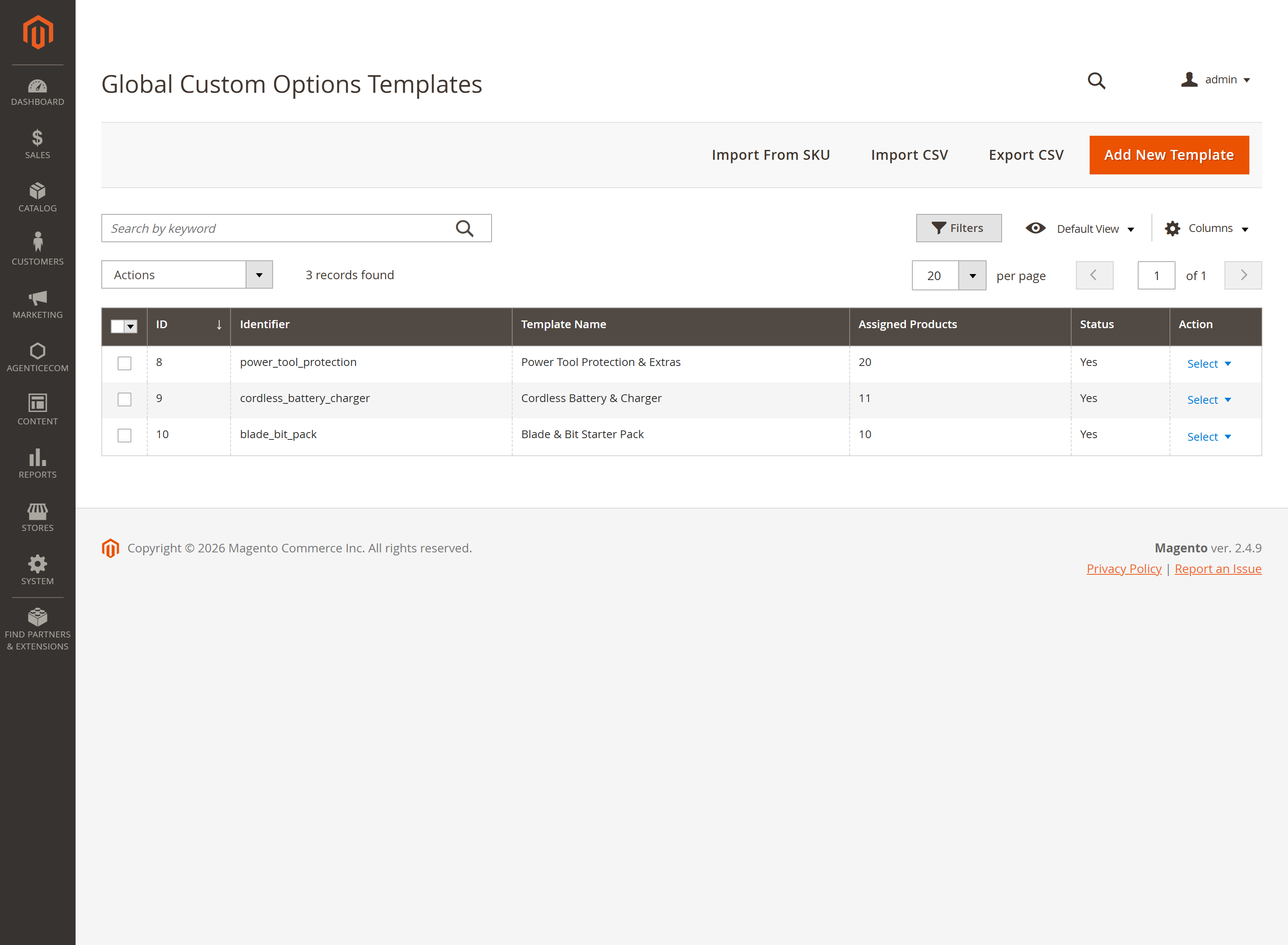
Go to Catalog → Inventory → Global Custom Options and click Add New Template (or Import From SKU to seed one from a product that already has options).
Build your options in the Custom Options section (one row per option).
Open Assign to Products, pick an Apply Mode, and tick the products.
Click Save Template & Sync — the options are written to every assigned product.
The template edit screen has four sections:
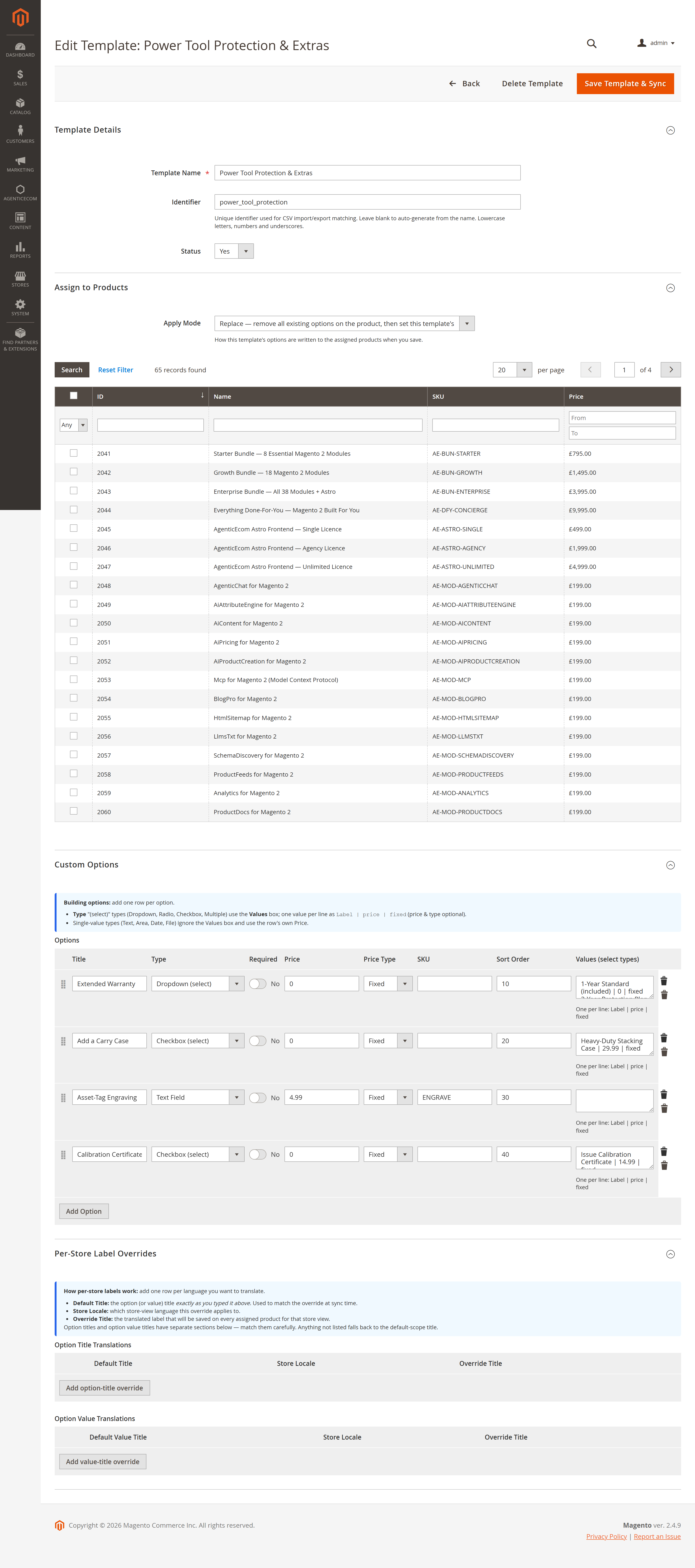
| Field | What it does |
|---|---|
| Template Name | Human label for the template (e.g. Engraving & Personalisation). |
| Identifier | Unique code used as the CSV upsert key. Leave blank to auto-generate from the name (lowercase, numbers, underscores). |
| Status | Enable/disable the template. |
Add one row per option. Each row has a Title, a Type, Required toggle, Price, Price Type, SKU, Sort Order, and — for select types — a Values table where you add each choice as its own row (exactly like Magento’s native Customizable Options on a product).
For Dropdown / Radio / Checkbox / Multiple Select, the option expands into a Values table. Click Add Value for each choice and fill its columns: Title, Price, Price Type, SKU and Sort Order.
Fixed — a flat amount added to the price. Percent — a percentage of the product price. Applies to both option-level and value-level prices.
Pick an Apply Mode, then tick the products this template should be written to. On Save Template & Sync, the options are pushed to every selected product.
Replace — remove all existing custom options on the product, then write this template’s. Use when the template should be the single source of truth.
Update — replace existing options whose title matches one in the template, add any new ones, and leave the rest untouched. Use to refresh a shared option without touching product-specific ones.
Add — add this template’s options on top of whatever the product already has. Use to layer an extra option set on.
Translate option and value labels per store view without leaving the template. Add one row per language in Option Title Translations and Option Value Translations:
| Column | Meaning |
|---|---|
| Default Title | The option/value title exactly as typed in the builder — used to match the override. |
| Store Locale | The store-view language the override applies to (e.g. de_DE). |
| Override Title | The translated label written for that store view. |
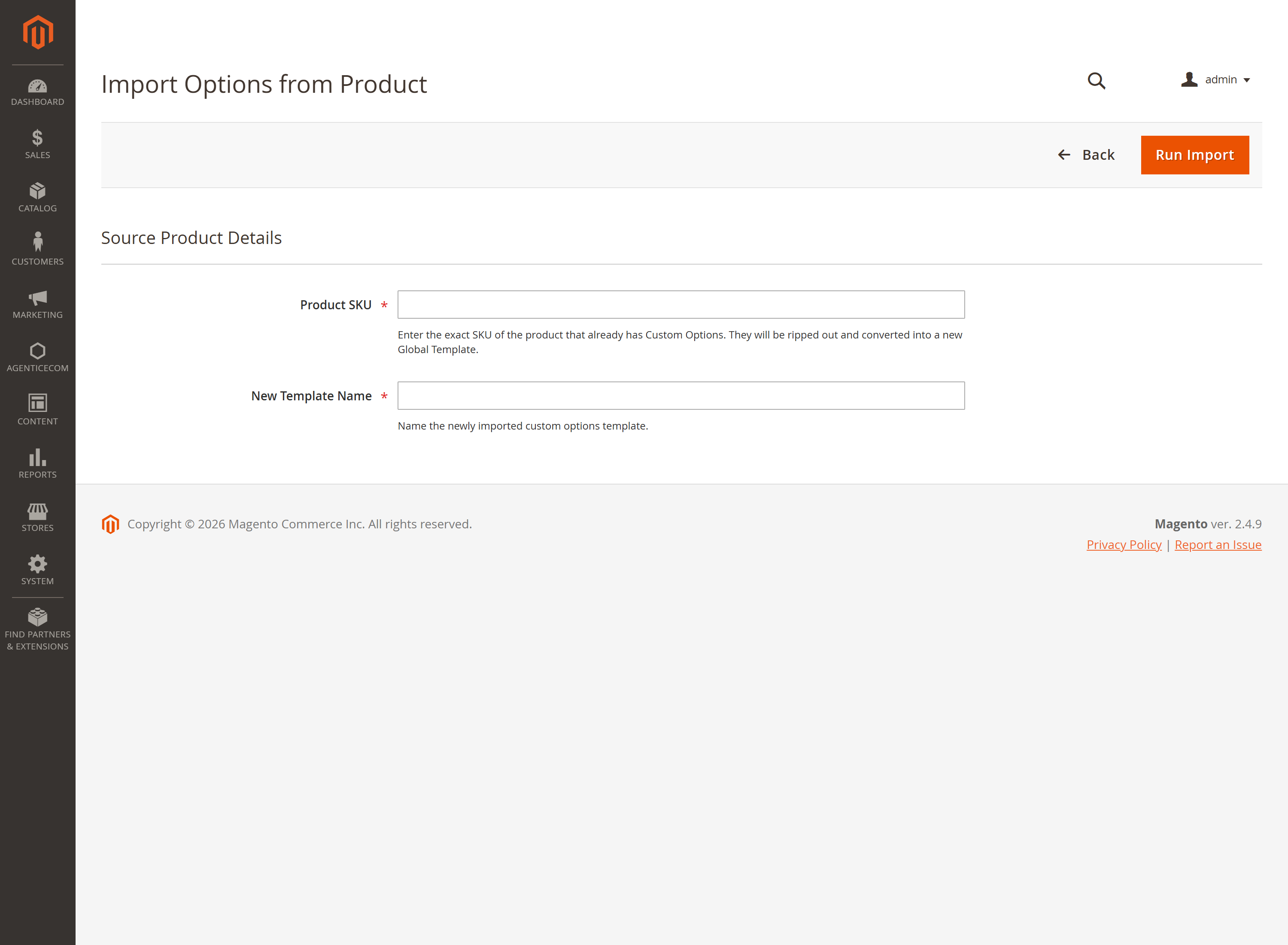
Already have a product with the perfect option set? Turn it into a reusable template in one step. Catalog → Global Custom Options → Import From SKU:
Bulk-create and bulk-edit templates in a spreadsheet. Import CSV and Export CSV are on the grid toolbar.
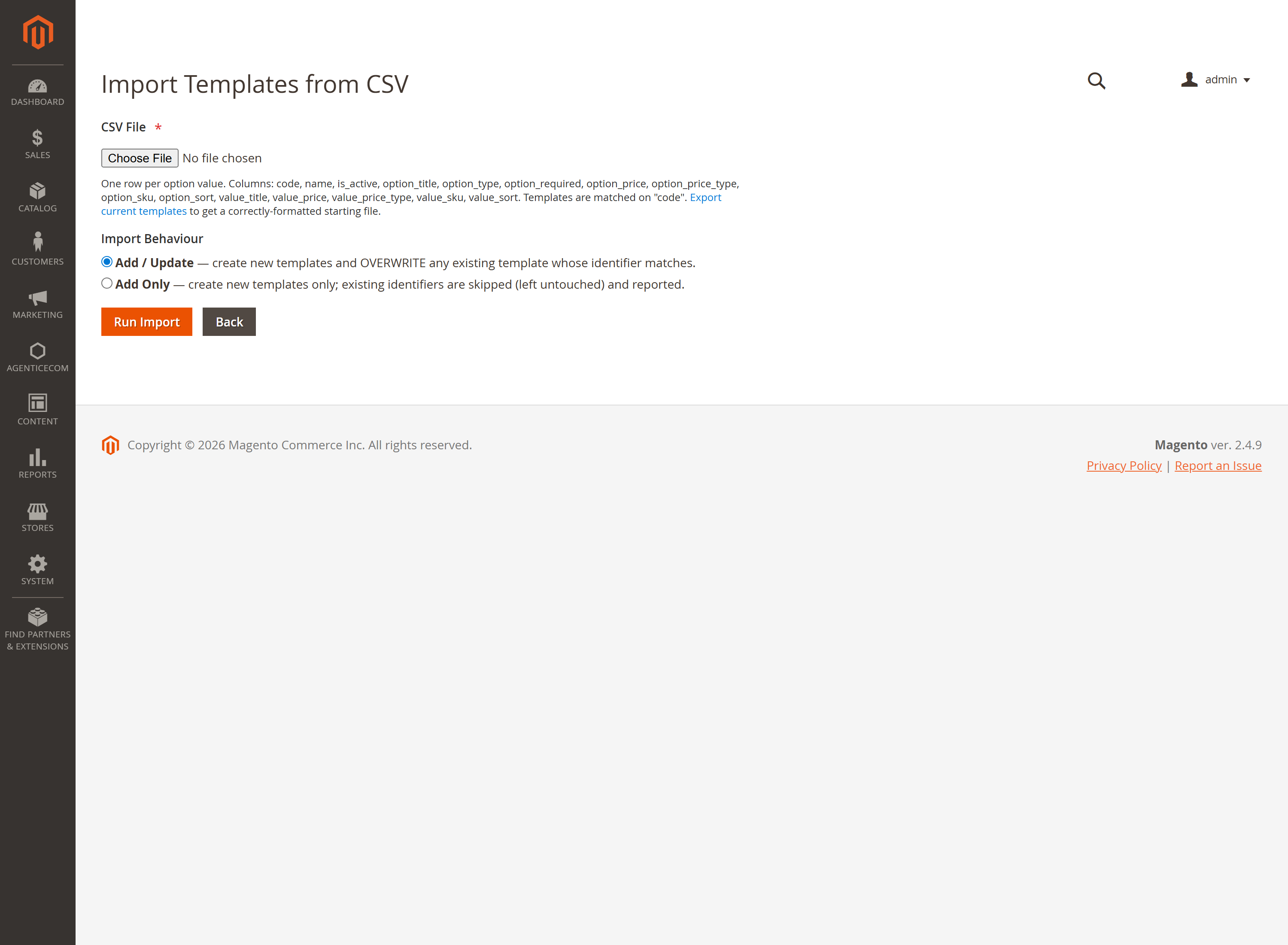
The CSV is flat/long — one row per option value (or per option for single-value types),
grouped by the code column:
code,name,is_active,option_title,option_type,option_required,option_price,option_price_type,option_sku,option_sort,value_title,value_price,value_price_type,value_sku,value_sortgift_options,Gift Options,1,Gift Wrap,checkbox,0,2.5,fixed,,10,Standard,2.5,fixed,,1gift_options,Gift Options,1,Gift Wrap,checkbox,0,2.5,fixed,,10,Premium,5,fixed,,2gift_options,Gift Options,1,Engraving Text,field,0,10,fixed,,20,,,,,code matches.codes are skipped and reported.Export CSV produces a file in exactly this format, so the quickest way to start is to
export, edit in a spreadsheet, and re-import. Templates are matched on the code column.
Stores → Configuration → AgenticEcom → Global Custom Options
| Field | What it does |
|---|---|
| Enable Global Custom Options Module | Master on/off switch for the module. |
No — the module writes standard Magento custom options onto each product, so the storefront, cart, checkout and order behave exactly as they would with hand-built options. The template system is purely an admin-side authoring tool.
Replace wipes all existing options on the product then writes the template’s; Update swaps only options whose title matches the template (keeping the rest); Add layers the template’s options on top. Pick per save in the Apply Mode dropdown.
Yes. Use Per-Store Label Overrides to give option and value titles a translated label per store-view locale. The default label is the fallback for any store view without an override.
Yes — Import From SKU reads an existing product’s custom options into a new template you can then assign to other products.
Export CSV on one store and Import CSV on another. Templates are matched and upserted
on the code column, so re-importing updates rather than duplicates.
Every admin controller is behind the AgenticEcom_CustomOptions::manage ACL resource; saves
and imports are POST-only; CSV input is validated and option payloads are sanitised before
being written through Magento’s own custom-option repository. Verified clean on PHP 8.4 and 8.5.