

Homepage
Hero, featured categories, promos, content rows.
Recorded 14 October 2026 · Narrated walkthrough · English captions
Astro Admin — Structural Presets 2026-10-14 — Astro Admin setup

00:00:00 — Structural Presets
Welcome to the Agentic Ecom Astro Admin guide to structural presets. We're using the Sync Comms storefront to show the current controls. We'll review the workflow with previews, without saving changes to this live store.

00:00:14 — Choose the page type first
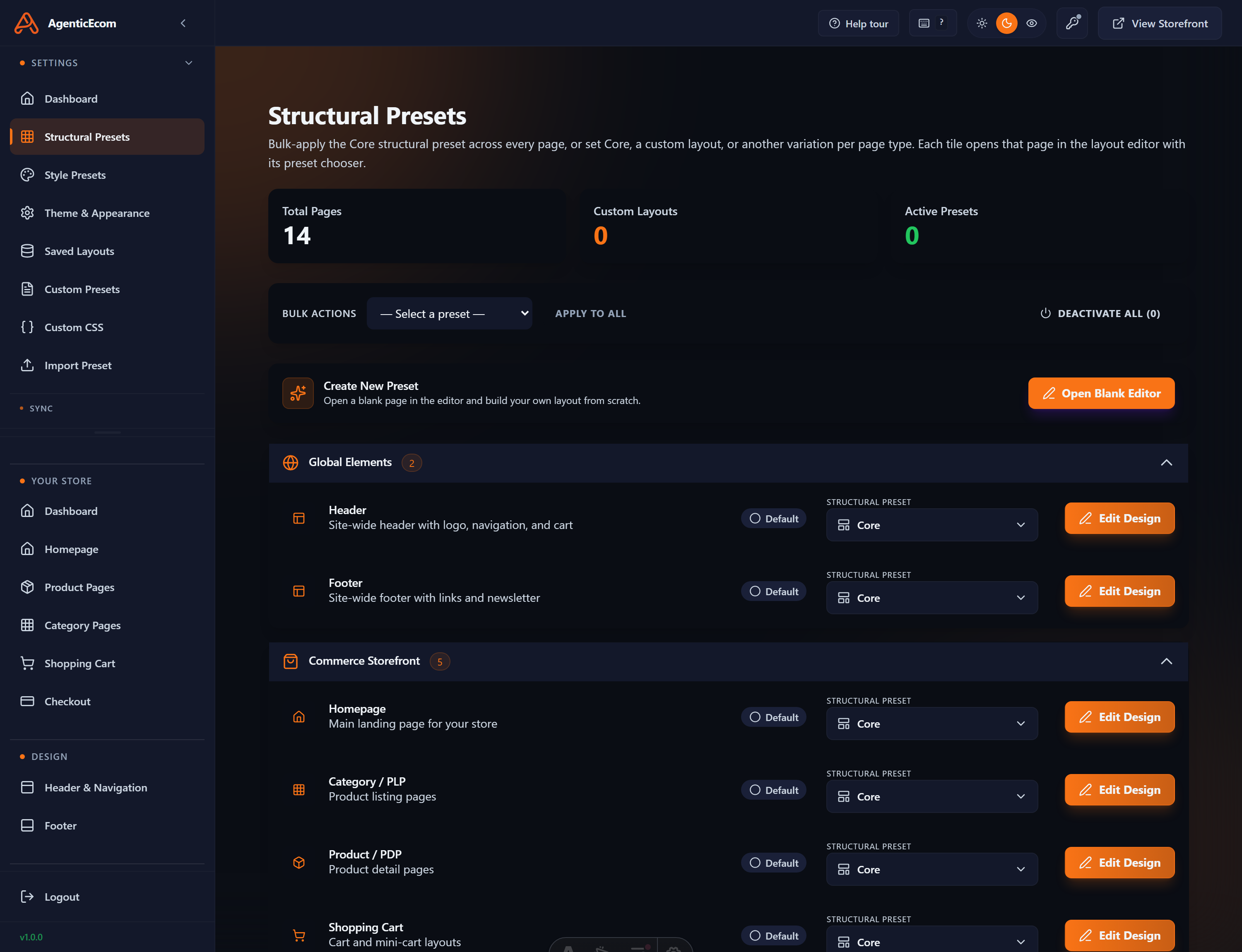
Open Structural Presets. The screen groups Global Elements, Commerce Storefront, Content and Marketing, User Account, and System or Utility pages. Header and footer are shared elements. Homepage, category, product and checkout each have their own layout assignment.

00:00:32 — Inspect the current assignment
Expand the group you need and review the preset currently assigned to that page type. The preset selector offers compatible choices, including custom presets. Choose a different preset on your store, then use the row's Save control when you intend to activate it. We are only opening the choices here.

00:00:51 — Edit the current design
Edit Design opens the page editor for that page type. The left palette contains blocks, the centre shows rows and columns, and the right panel holds properties. Start with the correct page type so a homepage change does not accidentally become a product-page layout.

00:01:09 — Keep a reusable custom preset
Use More save options, then Save as new preset when you want a reusable copy. Give it a clear name, save the copy on your store, then return to Structural Presets to select and activate it for the intended page type. Saving a new copy is different from assigning it as the active layout.

00:01:28 — Check activation and build coverage
Back on Structural Presets, confirm each intended assignment before prebuilding. Deactivate removes an assignment, and Apply to All is a broad action. Use them only when that is your intention. Rebuild the affected page types and verify the result on desktop and mobile.

00:01:47 — Your next steps
To put this into practice, check each intended page type, save and assign the correct preset, prebuild and verify the affected pages. Test the complete result on your own staging storefront before publishing. You can follow the written Astro Admin guides at user guides dot Agentic Ecom dot net.
A Structural preset decides the layout of a page type — which blocks appear and how they’re arranged. It is the structure layer of the three-preset model: it controls arrangement, not colour or decoration (those are Style and Theme).
A storefront isn’t one page — it’s a set of page types, each with its own layout. The structural preset defines a layout for each:
Homepage
Category / listing
Product (PDP)
CMS / content
The page also has shared chrome — the header and footer — which appear on every page type and have their own variants (see below).
The Structural Presets screen lists one row per page type (Homepage, Category, Product, Header, Footer, and so on). You assign a preset to each page type independently — there’s no single “activate” button for the whole store.
Open Structural Presets in the sidebar.
Find the page-type row you want to change (e.g. Product).
In that row’s Structural Preset dropdown, choose the preset you want.
Click Save on that row (the Save button appears once you change the selection). That choice becomes the active layout for that page type.
Prebuild so the change reaches the live storefront.
Each row also has an Edit Design button — which opens the page editor on that page type’s currently-active design — and a Deactivate button, which clears the saved layout for that page type so you can pick a different preset and Save again.
You don’t edit a built-in preset directly — you fork it into one of your own. There are two routes:
Your custom presets appear on the Custom Presets screen as well, filtered to the ones you’ve made.
Some parts of the store ship several ready-made variants you can swap without opening the full editor. The three big ones to know:
The site header has three layouts — for example a classic centred logo, a left-aligned logo with inline nav, and a compact/utility bar style. Pick the one that suits your brand.
The footer ships multiple variants (e.g. a rich multi-column footer, a compact single-row footer, a newsletter-forward footer). Swap them the same way: select the Footer block → Variations → apply → save → Prebuild.
The product (PDP) layout has variant options too — for example gallery-left vs gallery-top, or a sticky add-to-cart. Open the Product page type in the editor, select the relevant block, and switch its variant in Variations.
That page type now uses the selected preset as its active layout (the row’s status shows as active).
Pages that are already prebuilt keep showing the old layout until you re-Prebuild.
After a Prebuild, every page of each type is rebaked with the new layout and goes live.