

Magento
Check the exact release against your Magento Open Source version.
Recorded on version 1.0.2 · Narrated walkthrough · English captions
Headless Lock 1.0.2 — Magento Admin setup

00:00:00 — Set up Headless Lock
Welcome to the Agentic Ecom Headless Lock guide. We'll use Magento Admin to review the setup and explain the handoff to your headless storefront. This walkthrough covers stable version 1 point 0 point 2 and assumes the extension is installed.

00:00:15 — Open Frontend Lockdown
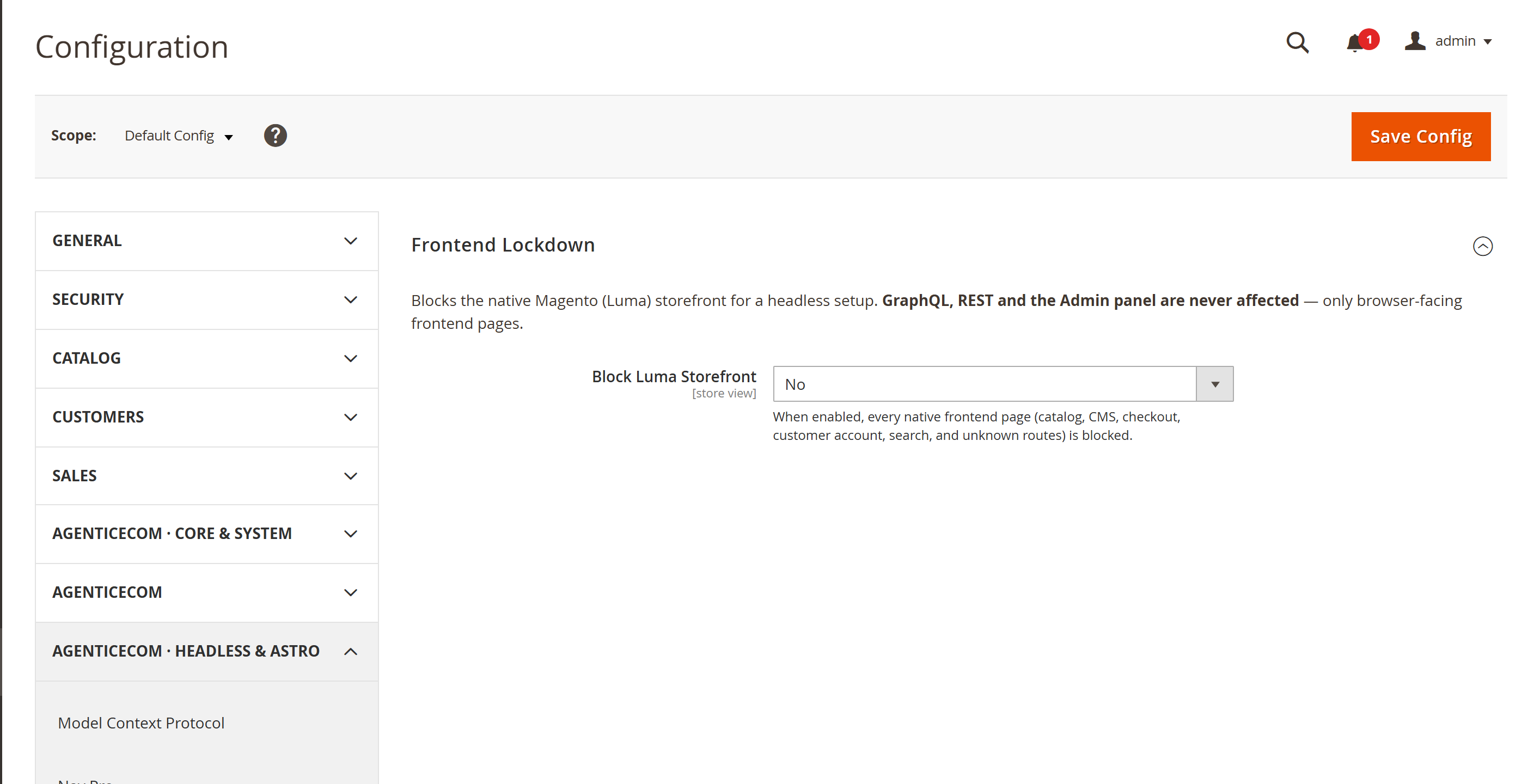
Open Stores, Configuration, Headless Lock, Frontend Lockdown. The extension ships disabled. It blocks native Magento frontend pages when you deliberately enable it for the chosen scope. Confirm your headless storefront is working before turning off the old storefront.

00:00:34 — Choose redirect or Gone
Set Block Luma Storefront to Yes in your staging configuration. When Blocked lets you choose a temporary three oh two redirect or a four ten Gone response. A four ten tells crawlers the old page is gone, so choose it deliberately. A redirect requires the correct destination URL.

00:00:54 — Review the redirect destination
If you choose redirect mode, enter your headless storefront address in Redirect URL. A blank redirect URL falls back to four ten Gone. Keep this aligned with the optional Astro CORS redirect. Do not create a redirect loop between the Magento host and the storefront.

00:01:13 — Keep required callbacks reachable
Review Allowed Frontend Routes for non-standard integrations, and Additional Path Prefixes for callbacks that are not registered routes. Built-in exemptions cover several payment and OAuth integrations, but test the callbacks your store actually uses. Add only the extra routes or paths that need to remain reachable.

00:01:33 — Save and test the full journey
After saving in staging, verify a native product page is blocked as intended. Confirm Magento Admin, Graph Q L and REST still work, then exercise your payment and sign-in return paths. Finally, test the headless checkout. Here we have reviewed the controls without saving a lockdown change.

00:01:53 — Your setup checklist
Your next steps are to confirm the headless storefront is ready, choose response and callback allowances, test apis and checkout in staging. Use a staging store for the end-to-end check. The complete installation and integration reference is at user guides dot Agentic Ecom dot net.
When you run a headless Magento behind an Astro (or other) storefront, the old Luma frontend is still alive underneath — every product, category, checkout and CMS page still responds. That’s duplicate content for Google, a confusing second checkout, and a surface you don’t want exposed. Headless Lock turns the Luma storefront off with a single toggle — while GraphQL, REST and the Admin keep working untouched, and payment and OAuth callbacks keep flowing.
Install Headless Lock with Composer using your AgenticEcom licence key (find it on your My Licences page — one key unlocks every module you own):
# 1. Register the AgenticEcom repository (once per store)composer config repositories.agenticecom composer https://repo.agenticecom.netcomposer config --global --auth http-basic.repo.agenticecom.net <YOUR-LICENCE-KEY> x
# 2. Require this modulecomposer require agenticecom/module-headless-lock
# 3. Apply itphp bin/magento setup:upgrade && php bin/magento setup:di:compile && php bin/magento cache:flushMagento
PHP
Scope
Bypass-proof
Blocked (when on)
Every native frontend page: catalog (products, categories, search), CMS pages, checkout, the customer account, 404s and any unknown frontend route.
Always allowed
GraphQL (/graphql), REST (/rest) and the Admin (/admin) run in their own areas and
are never affected — plus every payment gateway and OAuth/social-login callback.
You decide
Any extra frontend route on your install (a non-standard payment module, /llmstxt, a custom
webhook) can be allow-listed.
Go to Stores → Configuration → AgenticEcom · Headless & Astro → Headless Lock → Frontend Lockdown. (Pick the store view first if you only want to lock one.)
Set Block Luma Storefront to Yes.
Choose When Blocked:
If you chose redirect, set the Redirect URL to your storefront (e.g. https://yourstore.com). If
it’s left blank, a 410 Gone is returned instead.
Save Config. The Luma storefront is now dark; your APIs, Admin and payment callbacks keep working.
Most stores never need this — payment and OAuth are already covered. Use it only for a non-standard integration.
Allowed Frontend Routes lists every frontend route registered on your install (with its module
name). Tick any extra one you need to stay reachable while the lock is on — for example a
non-standard payment module, or /llmstxt for the AI-crawler file.
Additional Path Prefixes (advanced) takes one path per line (or comma-separated) for callbacks
that aren’t a standard route front-name. A request is allowed if its path equals or starts with a
listed prefix — e.g. /webhook/my-service.
No. The block is frontend-area only. GraphQL (/graphql) and REST (/rest) run in separate
areas and the blocking plugin isn’t even loaded there, so they’re never affected. The Admin is
likewise untouched.
They’re automatically allowed. The payment-gateway routes (Stripe, PayPal, Braintree, Adobe Payment Services, the vault) and OAuth/social-login are hard-coded as always-allowed and can’t be blocked, even if you don’t tick them in config.
The lock only auto-allows the standard gateways. If your module registers a frontend route it appears in Allowed Frontend Routes — tick it. If its callback isn’t a registered route, add its path to Additional Path Prefixes (advanced).
Use 302 redirect while you’re transitioning, so you can point shoppers at the new storefront and still reverse it. Use 410 Gone once you’re certain the Luma frontend is retired for good — it tells search engines to drop those URLs.
Yes. Every setting is store-view scoped. Select a store view at the top of the Configuration page, enable the lock there, then leave the other store views disabled. Check exact-release compatibility before deployment.