

CMS Blocks
How many Magento CMS blocks are available to the storefront.
The Dashboard is the first screen you see. It tells you the state of your storefront at a glance and offers two ways to get live.
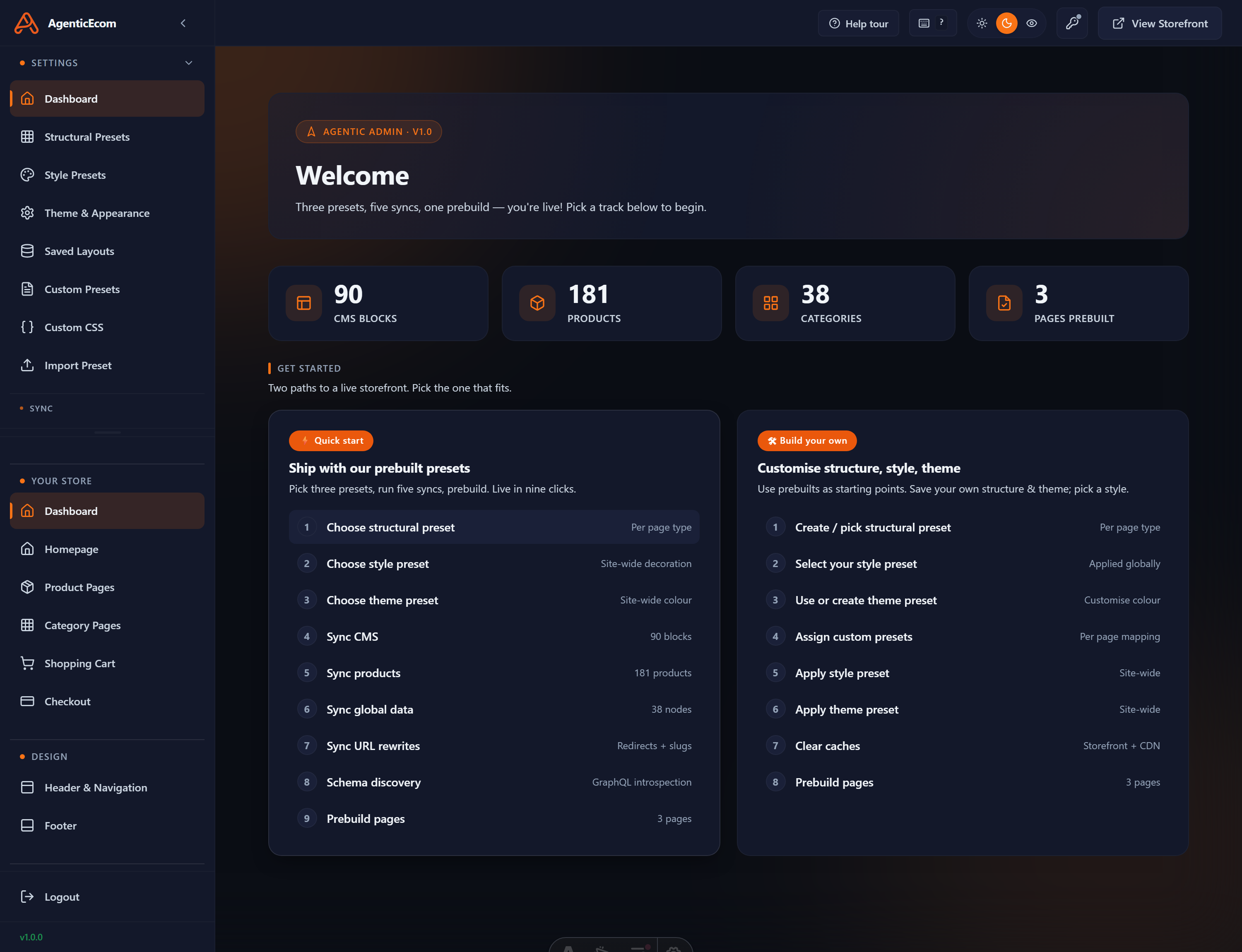
The left rail is your map for everything in this guide: Settings (presets, theme, custom CSS), Your Store and Design (the per-page-type page editor), and Sync (pulling data from Magento, prebuild, cache). The top bar has the theme light/dark toggle, a Help tour, and View Storefront to open the live site in a new tab.
Four tiles show what has been synced and built so far:
CMS Blocks
Products
Categories
Pages Prebuilt
If a count is 0, that data hasn’t been synced yet — start with the syncs. If Pages Prebuilt is 0, nothing has been baked yet, so the live storefront won’t show your latest work until you Prebuild.
The dashboard offers two tracks. You can switch between them at any time — they’re not locked choices.
Quick Start (ship with our presets). The fastest route: sync your data, pick one of the ready-made structural / style / theme presets, prebuild, done. About nine clicks. Best when you want a clean, professional store live today and will refine later.
Build Your Own. Customise the structure, style and theme yourself and save your own presets at every layer. Best when you want the storefront to match a specific brand. Everything in Quick Start is still available — you’re just editing instead of accepting defaults.
Whichever track you choose, this order avoids the “why is nothing showing?” trap:
Sync first. Run Sync Global Data, then Sync CMS and Sync Products. This gives the storefront something to render.
Pick your look. Choose (or build) a Structural preset, a Style preset and a Theme.
Prebuild. Bake the pages so your choices go live.
Check the storefront. Use View Storefront in the top bar to see the result.