

Magento
Open Source 2.4.9 GA (and later 2.4.x).
Custom Forms lets you build forms with a visual editor, collect and manage submissions inside the admin, route them to email, push them to external systems through a signed webhook, and protect them from spam — all without writing code. It works on a standard Magento store and on a headless (Astro) storefront via GraphQL or REST.

Install Custom Forms with Composer using your AgenticEcom licence key (find it on your My Licences page — one key unlocks every module you own):
# 1. Register the AgenticEcom repository (once per store)composer config repositories.agenticecom composer https://repo.agenticecom.netcomposer config --global --auth http-basic.repo.agenticecom.net <YOUR-LICENCE-KEY> x
# 2. Require this modulecomposer require agenticecom/module-customforms
# 3. Apply itphp bin/magento setup:upgrade && php bin/magento setup:di:compile && php bin/magento cache:flushMagento
PHP
Storefront
PDF (optional)
mpdf/mpdf for PDF export & PDF email attachments.Go to Content → Custom Forms → Forms and click Create New Form.
On the General tab, enter a Form Title and a Form Code (lowercase, numbers and underscores — used for embedding).
Open the Form Builder tab and add your fields.
Set the Submit Button Text and Success Message on the Content tab.
Click Save Form.
Embed it on a page — or it’s instantly available to a headless storefront by its code.
Before building forms, set the store-wide defaults at Stores → Configuration → AgenticEcom · Sales, Customers & Marketing → Custom Forms. Every setting here is a default that individual forms can build on; spam, reCAPTCHA, email and webhook all live here. The working screens are under Content → Custom Forms (Forms, Submitted Data, Autoresponder Templates, Configuration).

Create a reCAPTCHA v3 key pair at google.com/recaptcha/admin for your storefront domain, then enable CAPTCHA per form on its Content tab.
mpdf library).Reply Form Configuration (used when you reply from the admin):
Autoresponder (auto-thanks the submitter):
Webhook / Zapier:
GDPR Consent:
Advanced:
0 = never).0 = keep forever).Content → Custom Forms → Forms lists every form you’ve built. Each row shows the ID, Form Name, Code, whether it’s Active, whether AI Spam Protection is on, and the Created date. Use the row’s Select → Edit / Delete, or the Actions menu for bulk operations. Create New Form (top-right) starts a new one.

Move a form between stores — staging → live, or one client site to another — without rebuilding it. Export writes the form’s definition (its fields, content, routing and spam settings) to a portable JSON file; import re-creates it on the target store.
Export one form — on the forms grid, open the row’s Select menu and choose
Export. You’ll download custom-form-<code>.json.
Export several at once — tick the forms you want, then Actions → Export Selected. All of them are written to a single JSON file.
Import — on the target store, click Import Forms (top of the grid), choose the
.json file, and Import. Each form in the file is created and you’re returned to the
grid with a confirmation.
A form-edit screen has five tabs down the left under FORM CONFIGURATION: General, Notifications, Content, Form Builder and Embedding.


/ AJAX-style success without a page reload.
The builder has a Form Layout canvas on the left and a Field Types palette on the right. Click a palette field to append it, or drag it onto the canvas. Every field has a drag handle to reorder, plus Duplicate, Edit and Delete actions.

Click the Edit (pencil) on a field to configure it:

Heading and Paragraph fields carry a full WYSIWYG editor in their Content
setting. Format with the toolbar, or click <> Source code to paste/edit raw HTML.
Whatever you enter renders formatted on the storefront — type plain text and it’s
wrapped for you; paste HTML and it’s sanitised and rendered.
A File Upload field accepts these types by default, up to 5 MB each:
jpg, jpeg, png, gif, webp, bmp, heic·pdf, doc, docx, xls, xlsx, ppt, pptx·txt, csv, rtf, odt, ods, zip
After the first save, the form’s Embedding tab shows three ready-to-paste snippets:

<div class="agentic-custom-form agentic-form--contact_us"></div>Paste into any CMS block or page (Show/Hide Editor → HTML). The storefront renders the live form in its place.
<CustomForm code="contact_us" client:visible />Drop this tag into any Astro page/component to render the form.
/forms/contact_usA standalone link to the form for sharing directly.
Open Content → Custom Forms → Submitted Data.
mpdf library). Per-form export buttons live on the form-edit action bar.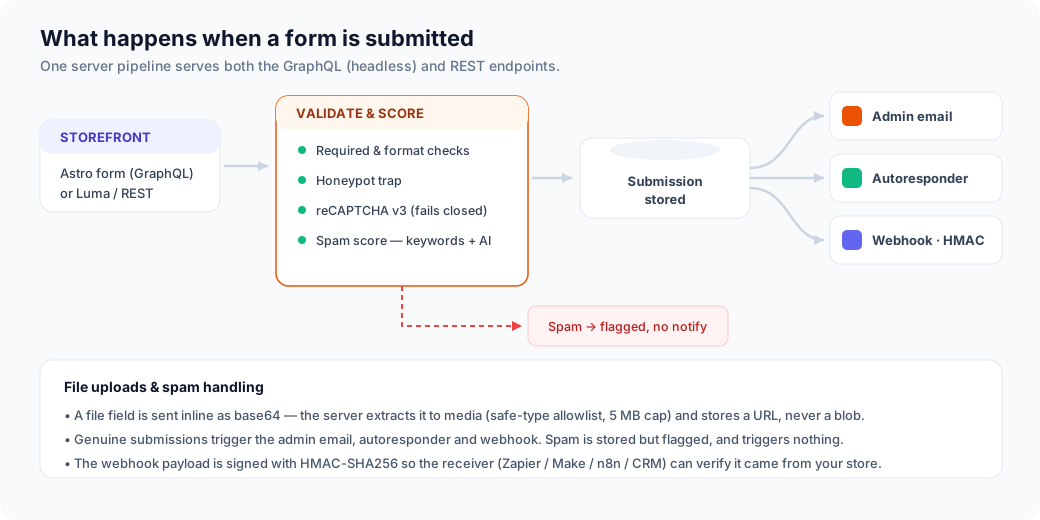
One server pipeline handles both the standard storefront and the headless GraphQL/REST endpoints, so validation, spam scoring and notifications behave identically everywhere.
You can pull any field’s value into your email templates. In a template (an Autoresponder
Template under Content → Custom Forms → Autoresponder Templates, or a core AgenticEcom Custom
Form template under Marketing → Email Templates), reference a field by its Field Name — for
example a field named order_ref:
Reference supplied: {{var data.order_ref}}Every submitted field is available on the data object by its field name, so admin and
autoresponder emails can be fully personalised.
Honeypot — a hidden field bots fill but humans don’t; a filled honeypot is treated as spam.
Blocked keywords — comma-separated words that flag a submission.
Heuristics — built-in checks (excess links, known spam phrases, all-caps, mixed scripts).
AI scoring (Google Gemini) — an optional second opinion for ambiguous submissions, using your own Google AI key.
reCAPTCHA v3 — set your keys, enable CAPTCHA on a form, and submissions are verified server-side.
Push every new submission as JSON to an external URL (Zapier, Make, n8n, a CRM, or your own endpoint). Enable it, set the URL, and optionally a signing secret.
For a decoupled (Astro) storefront, forms are delivered and submitted over GraphQL (a REST equivalent is also available).
# Fetch a form definition{ customForm(code: "contact_us") {    form_id name code is_active enable_captcha    submit_button_text success_message recaptcha_site_key fields_json} }
# Submit a formmutation {  submitCustomForm(    form_code: "contact_us"    data: "{\"name\":\"Jane\",\"email\":\"jane@example.com\",\"message\":\"Hello\"}"    recaptcha_token: "<v3 token, when CAPTCHA is enabled>"  ) { success message submission_id }}
GET /V1/customforms/form/{code} → form definitionPOST /V1/customforms/submit → { formCode, data, customerEmail?, refererUrl? }The submit path runs server-side validation, spam scoring and reCAPTCHA, stores the submission, and triggers the admin email, autoresponder and webhook — identically for GraphQL and REST.
These add functionality but aren’t required to run the module:
mpdf/mpdf — enables Export to PDF and Attach Submission PDF on notification emails.No. Copy the CMS block code from the Embedding tab and paste it into any CMS page or
block (in HTML mode). On a headless storefront, drop the <CustomForm code="…" /> tag onto
an Astro page.
It reads the form’s email field. Add an Email field to the form (and enable the autoresponder globally or per-form) and replies go to whatever the submitter entered.
Yes — five layers: a honeypot, a blocked-keyword list, built-in heuristics, optional AI scoring, and reCAPTCHA v3 (which fails closed). Submissions over the spam threshold are flagged and skip all notifications, or can be auto-rejected.
All input is validated and spam-scored server-side (never trusting the browser); uploaded files are restricted to a safe-type allowlist with a size cap and stored outside the database; secret keys (reCAPTCHA, AI, webhook) are stored encrypted; and the webhook payload is HMAC-signed. The module is verified clean on PHP 8.4 and 8.5.
Yes. Any field value is available in the email template as {{var data.<field_name>}} —
see Custom values in notification emails.
Stores → Configuration → AgenticEcom · Sales, Customers & Marketing → Custom Forms
| Group | Key settings |
|---|---|
| General | Enable Custom Forms |
| Spam Protection | Honeypot, score threshold, auto-reject, blocked keywords, AI scoring + Google AI key + model |
| Google reCAPTCHA v3 | Site key, secret key, minimum score |
| Admin Notification | Enable, recipients, sender, template, attach PDF |
| Reply Form Configuration | Sender, template, BCC |
| Autoresponder | Enable, sender, template |
| Webhook / Zapier | Enable, URL, signing secret |
| GDPR Consent | Enable, consent text |
| Advanced | Date format, file-link lifetime, submission retention |