

Magento
Version 1.0.8 was installed and compiled on Open Source 2.4.9. Test your exact release.
Recorded on version 1.0.8 · Narrated walkthrough · English captions
Custom Order Numbers 1.0.8 — Magento Admin setup

00:00:00 — Set up Custom Order Numbers
Welcome to the Agentic Ecom Custom Order Numbers Admin guide. We'll walk through the main setup screens and the checks to make before using the module. This guide assumes the extension is already installed.

00:00:12 — Open settings and choose scope
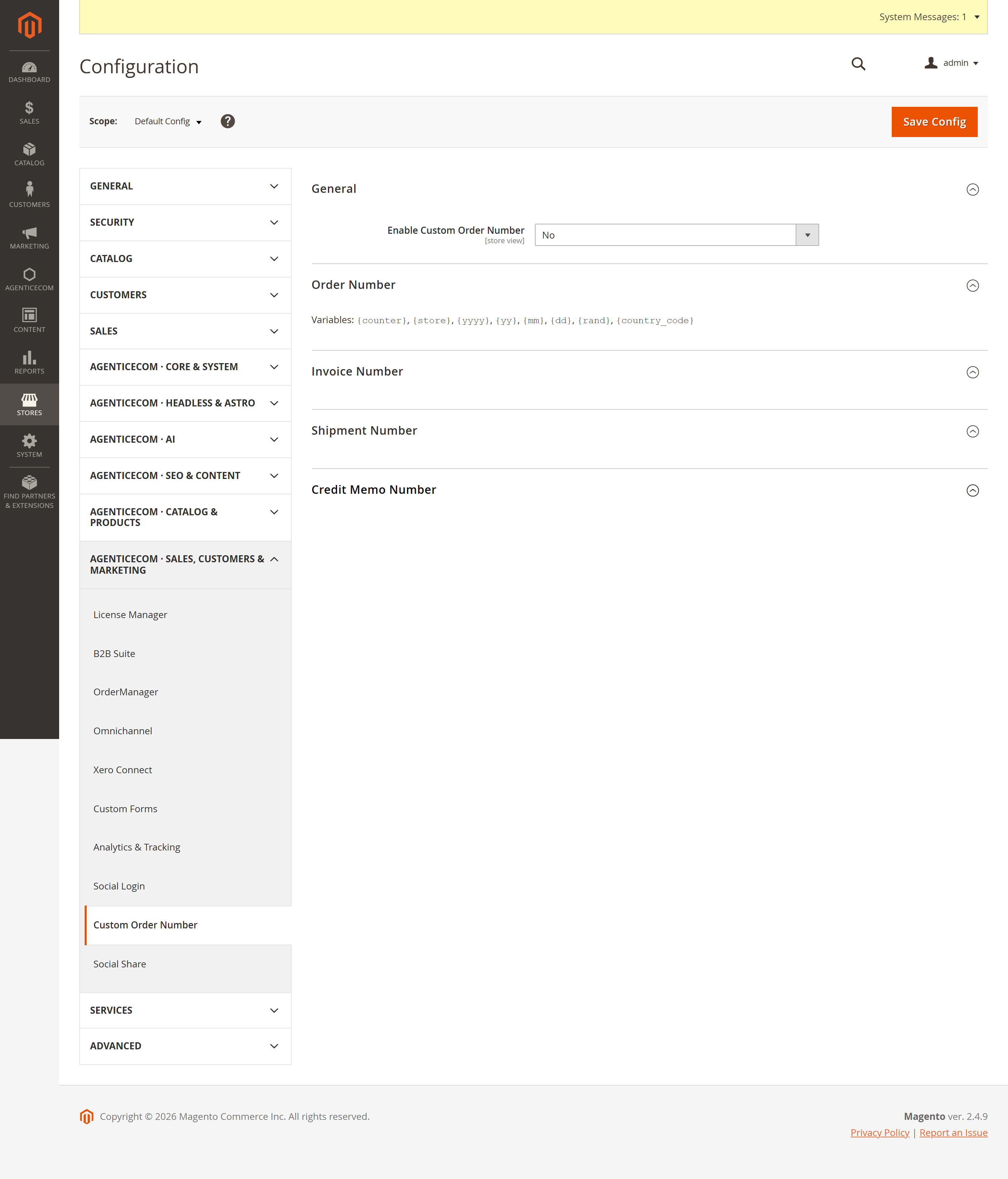
Start in Magento Admin and open Stores, Configuration. Choose Custom Order Number. Check the Scope selector before editing. Use the appropriate website or store view where the setting supports it. The screen values here are a demonstration; enter the settings and service details that belong to your own store.

00:00:32 — Enable custom references
Enable Custom Order Number at the intended scope. Plan the format before applying it to a live store, especially if accounting, payment or fulfilment systems depend on existing references. The module formats Magento sales sequence values; it does not renumber historical orders simply because you change a setting.

00:00:53 — Design the order format
In Order Number, review Number Format, Start Counter From, Counter Increment Step and Counter Zero-Padding. Use the supported tokens shown in the field help. Choose a readable reference that stays unique as your store grows. Check the written guide for the exact token syntax before entering your own pattern.

00:01:13 — Plan counter resets
Review Reset Counter separately from the visible format. A reset policy needs a format that distinguishes the new period, so references remain meaningful and do not collide. Avoid changing counters casually on a busy store. Test the complete numbering policy in staging with your connected systems.

00:01:33 — Configure other document numbers
Invoice Number has its own format. Shipment Number and Credit Memo Number are configured in their separate groups. Set each document type deliberately instead of assuming it inherits the order reference. After saving, create disposable test documents in staging and verify their displayed numbers and downstream exports.

00:01:54 — Save and verify your setup
When your required settings are complete, use the screen's Save control and wait for Magento's confirmation. Then reopen the record or configuration and check the saved values at the intended scope. If the storefront still shows earlier settings, refresh the relevant caches. Test your own configuration before using it with customers.

00:02:16 — Your setup checklist
That's the Admin setup walkthrough for Custom Order Numbers. Check permissions and scope, review the module-specific settings, then save and verify a small staging example. Use the written guide at user guides dot Agentic Ecom dot net for installation details, complete field references and any separate storefront integration steps.
Magento’s default order numbers (000000123) tell a customer — and you — nothing. Custom
Order Numbers lets you design them: a prefix, the date, a padded counter, even the
store or country — e.g. ORD-2026-01024 or UK-260615-00042. You can configure
separate formats for invoices, shipments and credit memos. The module formats Magento sales
sequences and checks generated numbers against saved documents. This guide describes version 1.0.9.
For an Adobe Commerce Marketplace purchase, install the purchased package from repo.magento.com using your Marketplace access keys. You do not need a second AgenticEcom direct-store licence. For a direct purchase, use your AgenticEcom licence key from My Licences:
# 1. Register the AgenticEcom repository (once per store)composer config repositories.agenticecom composer https://repo.agenticecom.netcomposer config --global --auth http-basic.repo.agenticecom.net <YOUR-LICENCE-KEY> x
# 2. Require this modulecomposer require agenticecom/module-custom-order-number
# 3. Apply itphp bin/magento setup:upgrade && php bin/magento setup:di:compile && php bin/magento cache:flushMagento
PHP
Documents
Numbering
Compose the number from literal text and tokens:
| Token | Becomes | Token | Becomes |
|---|---|---|---|
{COUNTER} | the padded sequence counter | {YYYY} / {YY} | year |
{STORE_ID} | the store view ID | {MM} / {DD} | month / day |
{country_code} | store default country | {rand} | random four-character hex; still include a counter |
ORD-{YYYY}-{COUNTER} → ORD-2026-01024{country_code}-{YY}{MM}{DD}-{COUNTER} → GB-260615-00042INV-{YYYY}{MM}-{COUNTER} → INV-202606-00007Set the counter behaviour separately:
| Setting | What it does |
|---|---|
| Start Counter | The first number (e.g. start at 1000 so numbers look established). |
| Pad Length | Zero-pad the counter to a fixed width (5 → 01024). |
| Increment Step | How much the counter advances each order (e.g. 1, or 10). |
| Reset Frequency | Never, Daily, Monthly, or Yearly — the counter restarts at Start Counter each period. |
Version 1.0.8 uses Magento sales sequences, a per-store/document advisory lock and saved-number checks. Test simultaneous checkouts with your store views and chosen format. The legacy separate-connection setting is not active.
Yes — set Reset Frequency. The first order of each new period restarts at your Start
Counter, and the date tokens in the format always match the period, so ORD-2026-00001 rolls
to ORD-2027-00001 cleanly on New Year’s Day.
Give each document its own format. Reusing the order number for every partial invoice, shipment or credit memo can create duplicate document references, so the supported release uses a separate sequence for each document type.
Formatting, the lock and collision checks add database work to a sales-document save. Measure checkout throughput on your own store before rollout.