

Magento
Open Source 2.4.9 GA (and later 2.4.x).
A headless storefront still needs a real navigation menu — ideally a mega menu with columns, promo blocks and icons, not just a flat list of links. NavBridge Pro adds those controls to every Magento category and exposes the entire navigation structure over GraphQL, so your Astro (or any headless) frontend can build a rich, multi-column mega menu from a single query — driven by merchants in the normal category admin, with no front-end redeploy.
Install NavBridge Pro with Composer using your AgenticEcom licence key (find it on your My Licences page — one key unlocks every module you own):
# 1. Register the AgenticEcom repository (once per store)composer config repositories.agenticecom composer https://repo.agenticecom.netcomposer config --global --auth http-basic.repo.agenticecom.net <YOUR-LICENCE-KEY> x
# 2. Require this modulecomposer require agenticecom/module-navbridgepro
# 3. Apply itphp bin/magento setup:upgrade && php bin/magento setup:di:compile && php bin/magento cache:flushMagento
PHP
Headless
Merchant-driven
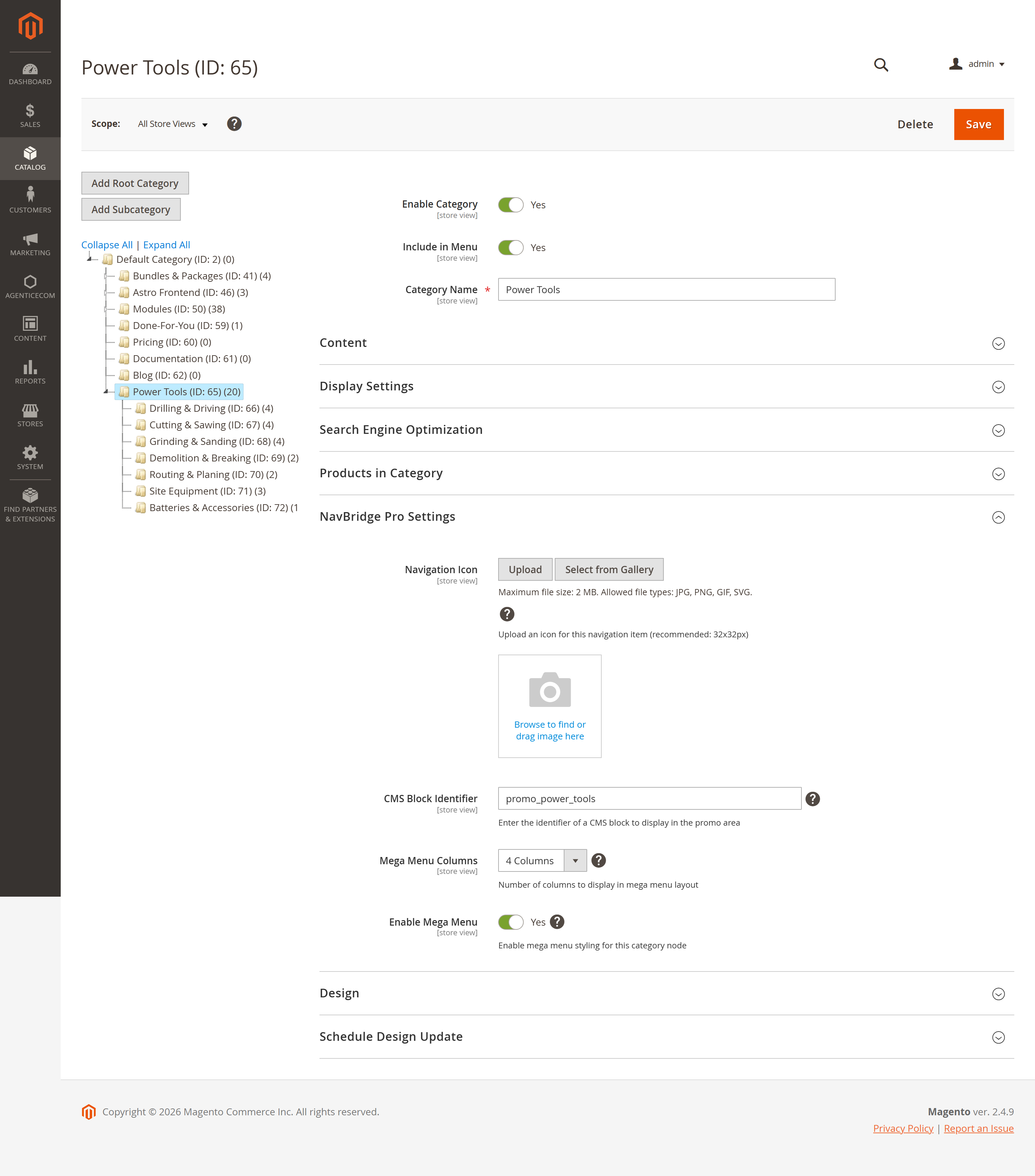
Open any category and you’ll find a NavBridge Pro Settings panel:
| Control | What it does |
|---|---|
| Enable Mega Menu | Marks this top-level category as a mega-menu trigger (its children are returned grouped). |
| Mega Menu Columns | How many columns (1–5) the storefront should lay the children out in. |
| CMS Block Identifier | A CMS block to render in the mega menu’s promo area (e.g. a seasonal banner). |
| Navigation Icon | An icon (≤2 MB, jpg/png/gif/svg) shown next to the nav item. |
navBridgeMegaMenu returns the top-level, in-menu categories; any marked as a mega menu come
back with their children and layout hints already attached.
{ navBridgeMegaMenu { id name url_path nav_bridge_is_mega nav_bridge_columns nav_bridge_cms_block nav_bridge_icon children { id name url_path } }}navBridgeCategoryTree returns the whole active category tree (optionally depth-limited, or
mega-only) as a nested structure ready to render.
{ navBridgeCategoryTree(depth: 2) { id name level nav_bridge_columns children { id name children { id name } } }}The four nav_bridge_* fields are also added to Magento’s native categories /
categoryList queries, so if you already fetch categories you can just request the extra fields
— no separate call needed.
{ categories(filters: {ids: {eq: "41"}}) { items { id name nav_bridge_is_mega nav_bridge_columns }} }Open Catalog → Categories and pick a top-level category.
Expand NavBridge Pro Settings, turn on Enable Mega Menu, pick a column count, and (optionally) set a promo CMS block and icon. Save.
From your storefront, query navBridgeMegaMenu — the category comes back with its children,
column count and promo block, ready to render as a mega menu.
Only active, in-menu categories
Both queries filter to active categories (and the mega menu to include-in-menu), so a disabled or hidden category never appears in your navigation.
Nested tree, done right
navBridgeCategoryTree builds a proper parent→child tree from the category path, with an
optional depth limit and a mega-only filter for lean menu payloads.
No. The nav_bridge_* fields are merged onto Magento’s native categories and categoryList
queries, so if your storefront already loads the category tree you can just add the extra fields.
The navBridgeMegaMenu / navBridgeCategoryTree queries are there when you want a ready-shaped
menu in one call.
No — both resolvers filter to active categories, and the mega-menu query additionally requires include in menu, so anything hidden from the storefront stays out of the navigation.
Yes — every NavBridge field is store-scoped, so each store view can have its own mega-menu layout, column count, promo block and icons. Set the Scope selector on the category page before editing.
It’s a layout hint your storefront reads (nav_bridge_columns, 1–5) to decide how many columns to
arrange a category’s children into. Rendering lives in your theme/storefront, so you stay in full
control of the markup. Verified clean on PHP 8.4 and 8.5.