

Prebuild, Cache & Deleting
Astro Admin — Prebuild, Cache & Performance: setup guide
Recorded 14 October 2026 · Narrated walkthrough · English captions
Jump to a chapter 8 chapters
Read the full video transcript
Astro Admin — Prebuild, Cache & Performance 2026-10-14 — Astro Admin setup

00:00:00 — Prebuild, Cache & Performance
Welcome to the Agentic Ecom Astro Admin guide to prebuild, cache & performance. We're using the Sync Comms storefront to show the current controls. We'll review the workflow with previews, without saving changes to this live store.

00:00:14 — Start with current data and layouts
Open Prebuild Pages after saving your intended presentation changes and running the required syncs. The grid lists homepage, category, product and C M S pages, with built, not-built and failed status filters. Review the current state before choosing a build action.

00:00:33 — Choose a focused build scope
Use the page-type tabs and search to narrow the list. For a small change, select the affected pages instead of automatically rebuilding the whole catalogue. Prebuild current view and Build selected have different scopes. Check the selected count and the visible filter before starting an action on your store.

00:00:53 — Review progress and failures
Built, Not Built and Failed help you inspect the outcome. A started build is not a completed build: wait for it to finish and review failures. Build Remaining is useful when the intended pages have not yet been built. We are only filtering this screen, without starting, stopping or repairing a production build.

00:01:14 — Use the appropriate cache control
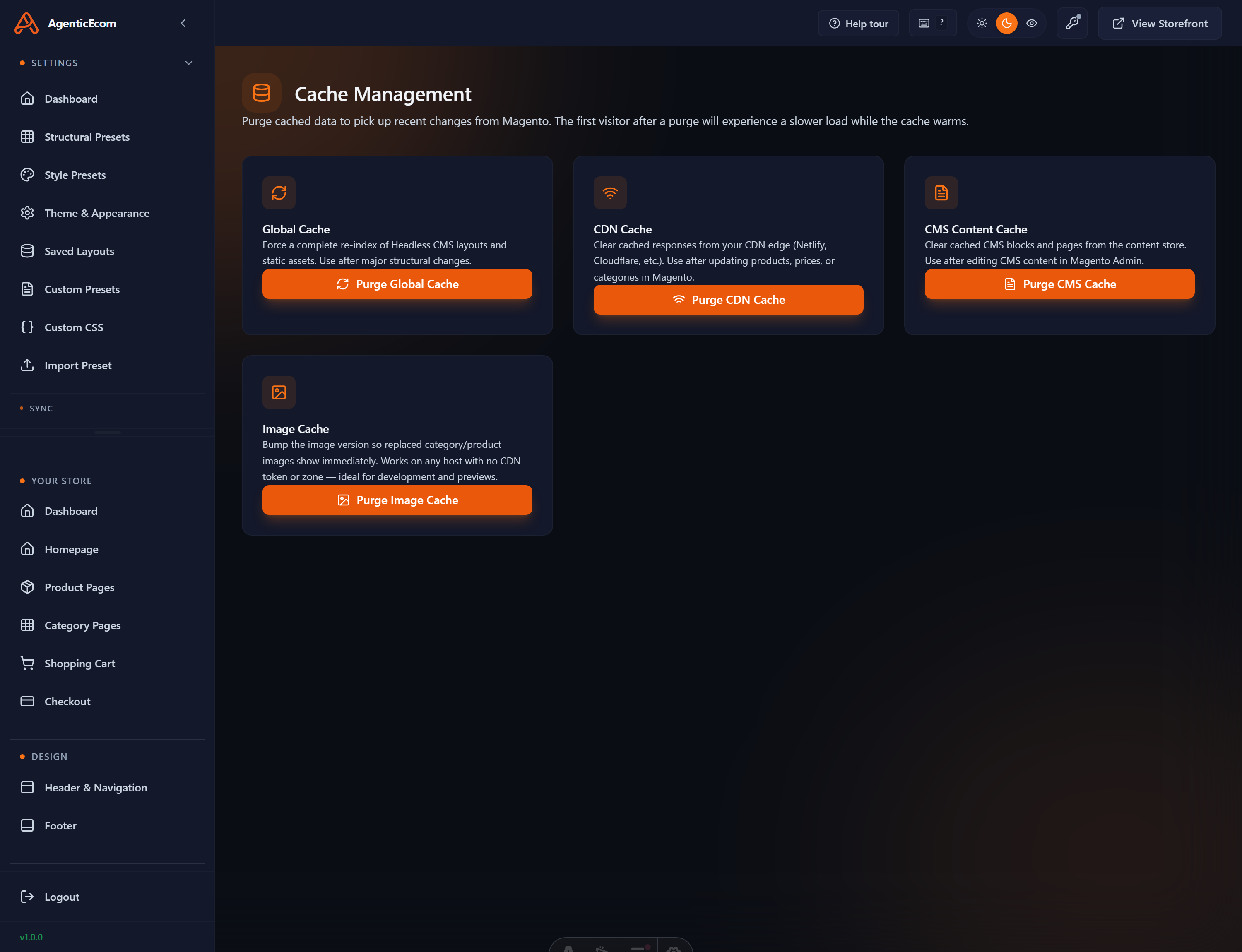
Cache Management separates Global, C D N, C M S and Image caches. Use the control that matches the stale content after checking that the correct data and pages were built. A browser hard refresh is another useful check. Purging cache is an operational action, so confirm the scope before using it.

00:01:36 — Review performance settings separately
Performance has network and rendering optimisation settings. Review each option against your deployment and test the effects on real pages. Save Changes applies the selected settings; Recommended and Reset All are broad controls. We are reviewing the screen without changing its configuration. Performance options do not replace a successful build or a functioning checkout.

00:02:01 — Verify the customer result
Open View Storefront after your build finishes. Check a representative homepage, category, product and C M S page, including mobile navigation and current price and stock. If something is stale, work through saved source, sync, prebuild, server or C D N cache, then browser cache in that order.

00:02:23 — Your next steps
To put this into practice, build the intended pages, review completion and failures, check caches and real storefront journeys. Test the complete result on your own staging storefront before publishing. You can follow the written Astro Admin guides at user guides dot Agentic Ecom dot net.
Prebuild is the publish button for the whole storefront. It takes your active presets plus the latest synced data and bakes static pages that load instantly for shoppers. Almost everything you do in the Agentic Admin only becomes visible to customers after a prebuild.
Running a prebuild
Section titled “Running a prebuild”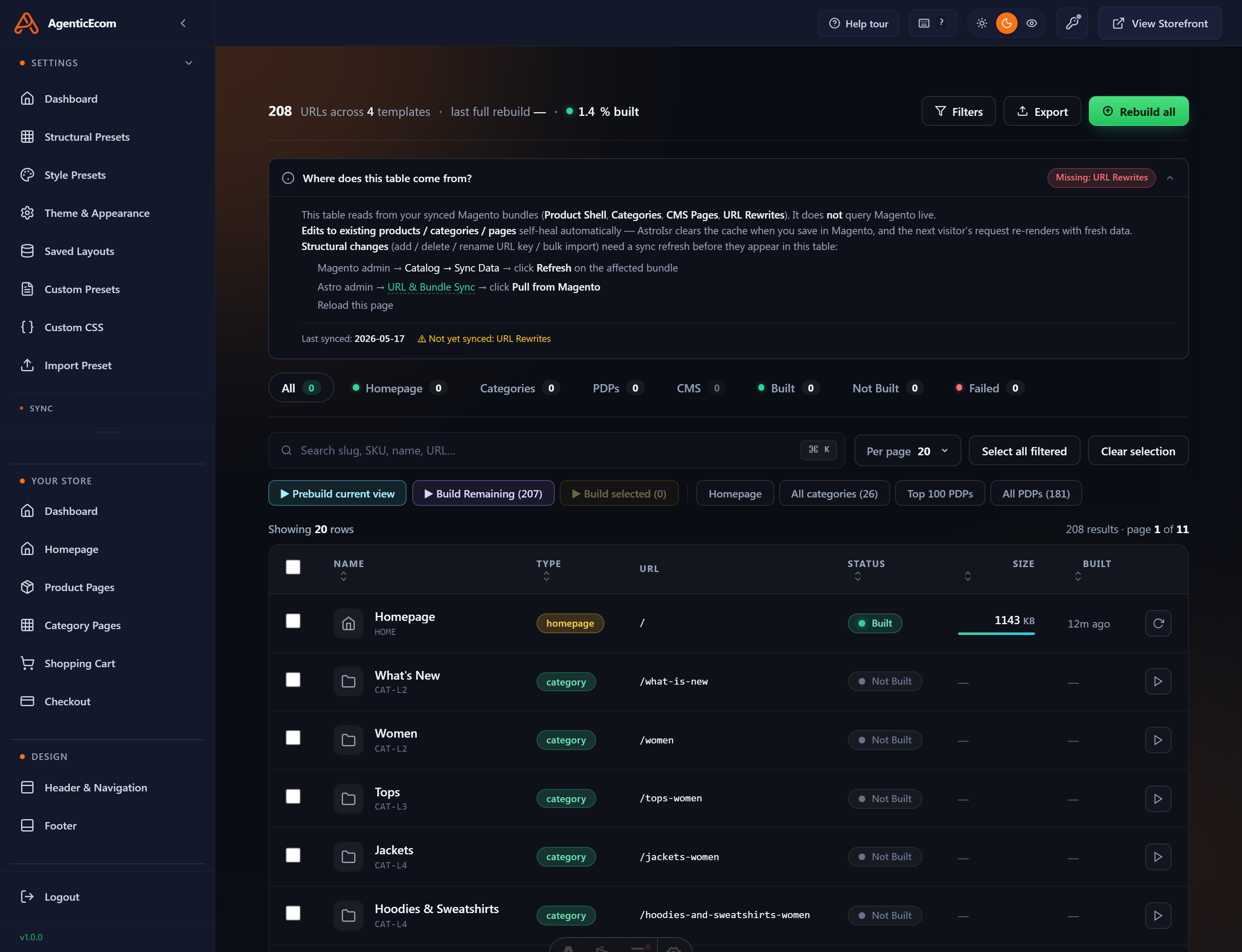
-
Make and save/activate your changes (preset, page, style, theme) and run any needed syncs.
-
Open the Prebuild action and start it. It bakes the affected pages; larger stores take longer.
-
When it finishes, the Pages Prebuilt count on the Dashboard updates.
-
Open View Storefront to confirm the result.
Clearing the cache
Section titled “Clearing the cache”If you’ve prebuilt but the storefront still serves an old version, the cache is holding the previous page. Clear it so the fresh build is served.
-
Use the Clear Cache action in the Agentic Admin (or your hosting/CDN cache purge if your store sits behind a CDN).
-
Reload the storefront with a hard refresh (Ctrl/Cmd + Shift + R) to bypass your browser’s cache too.
Deleting prebuilt pages / starting clean
Section titled “Deleting prebuilt pages / starting clean”To remove baked pages — for example to force a completely fresh rebuild — use the delete / clear prebuilt action, then run a new Prebuild. This is useful when:
- You removed products or pages in Magento and want the stale baked pages gone.
- A build looks wrong and you want to bake it again from scratch.
When a change isn’t showing
Section titled “When a change isn’t showing”This is the most common question. Work down it in order; one of these is nearly always the cause:
-
Did you save / publish / activate the change in the admin? (A draft isn’t live.)
-
Did you run the right sync? Catalogue change → Sync Products; CMS change → Sync CMS.
-
Did you Prebuild after the change? This is the usual culprit.
-
Did you Clear Cache (and CDN purge if you use one)?
-
Hard-refresh your browser to rule out browser cache.
-
Still wrong? Check the source in Magento is correct, saved, enabled and visible.